Scheduled reports are sent to your email automatically, so you receive up-to-date data without generating a report each time.
Click Reports in the left sidebar, then open the Schedule tab.
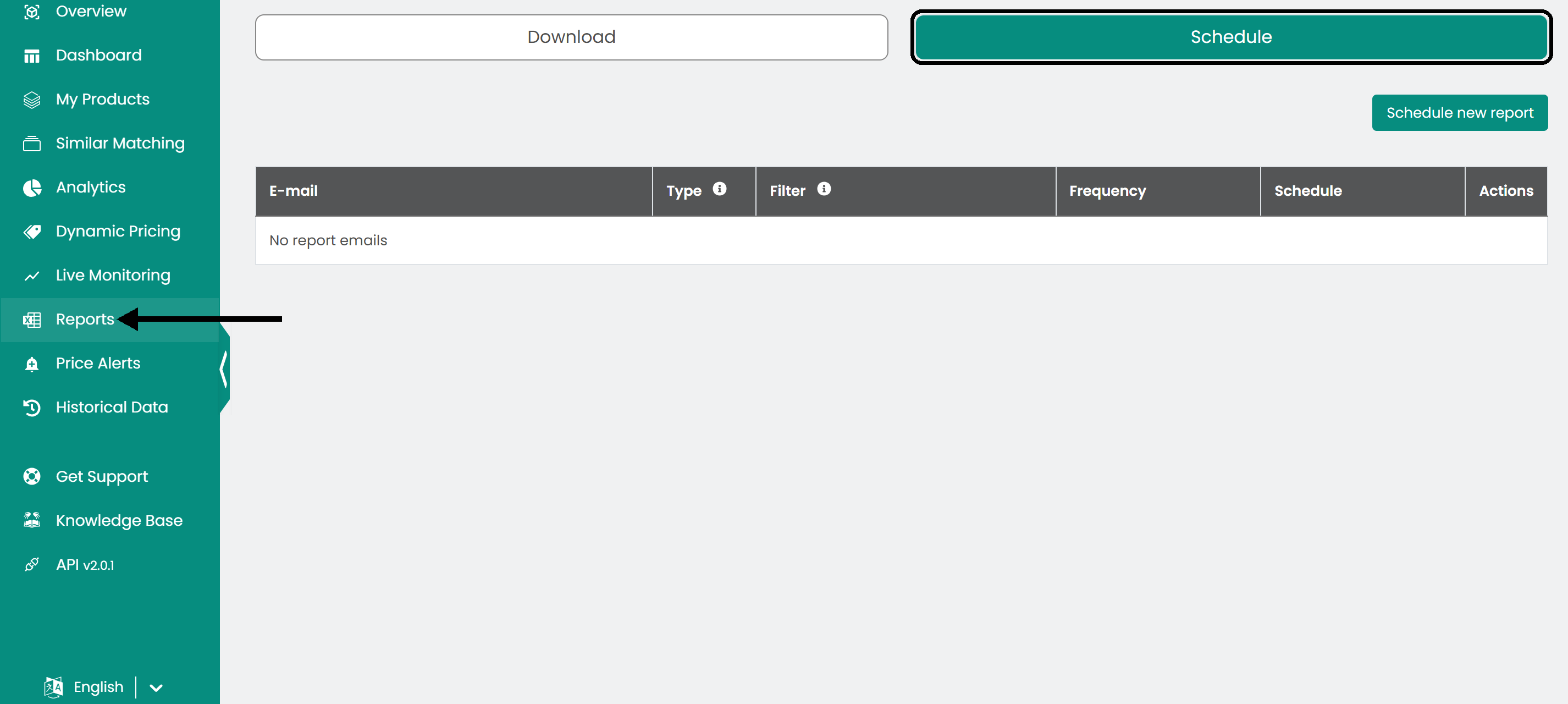
Schedule a report
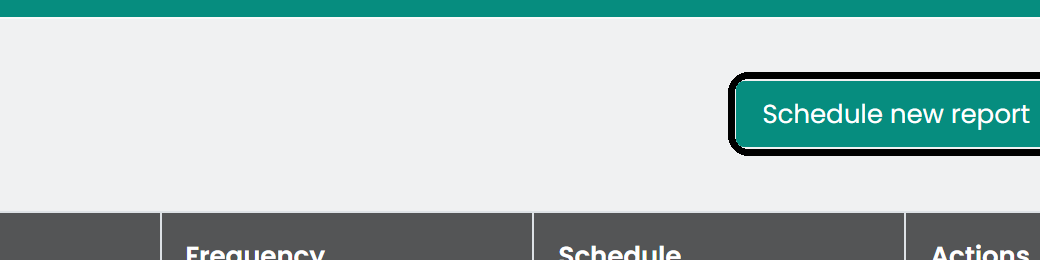
- Click Schedule new report.
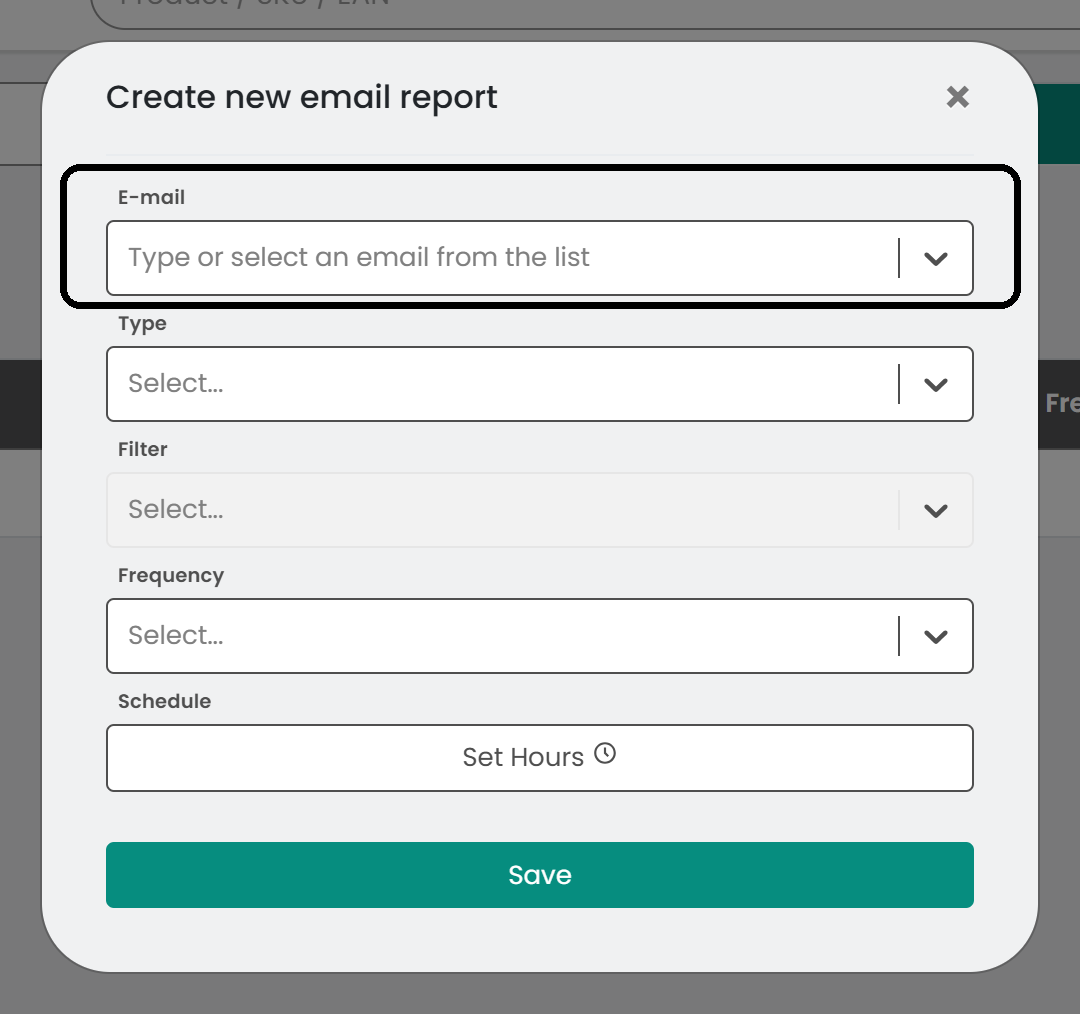
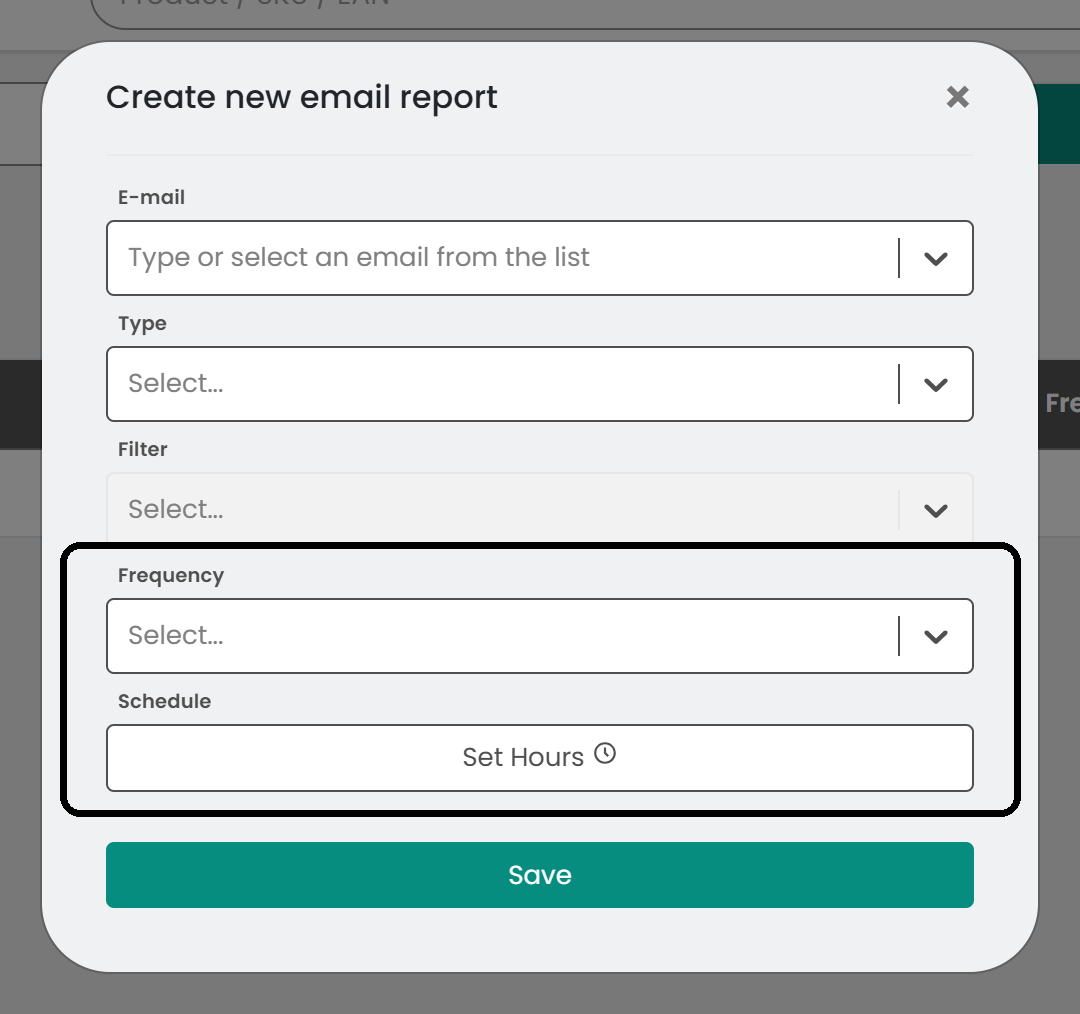
- In the Create new email report window, enter the email address that receives the report in the E-mail field. You can add more than one address.
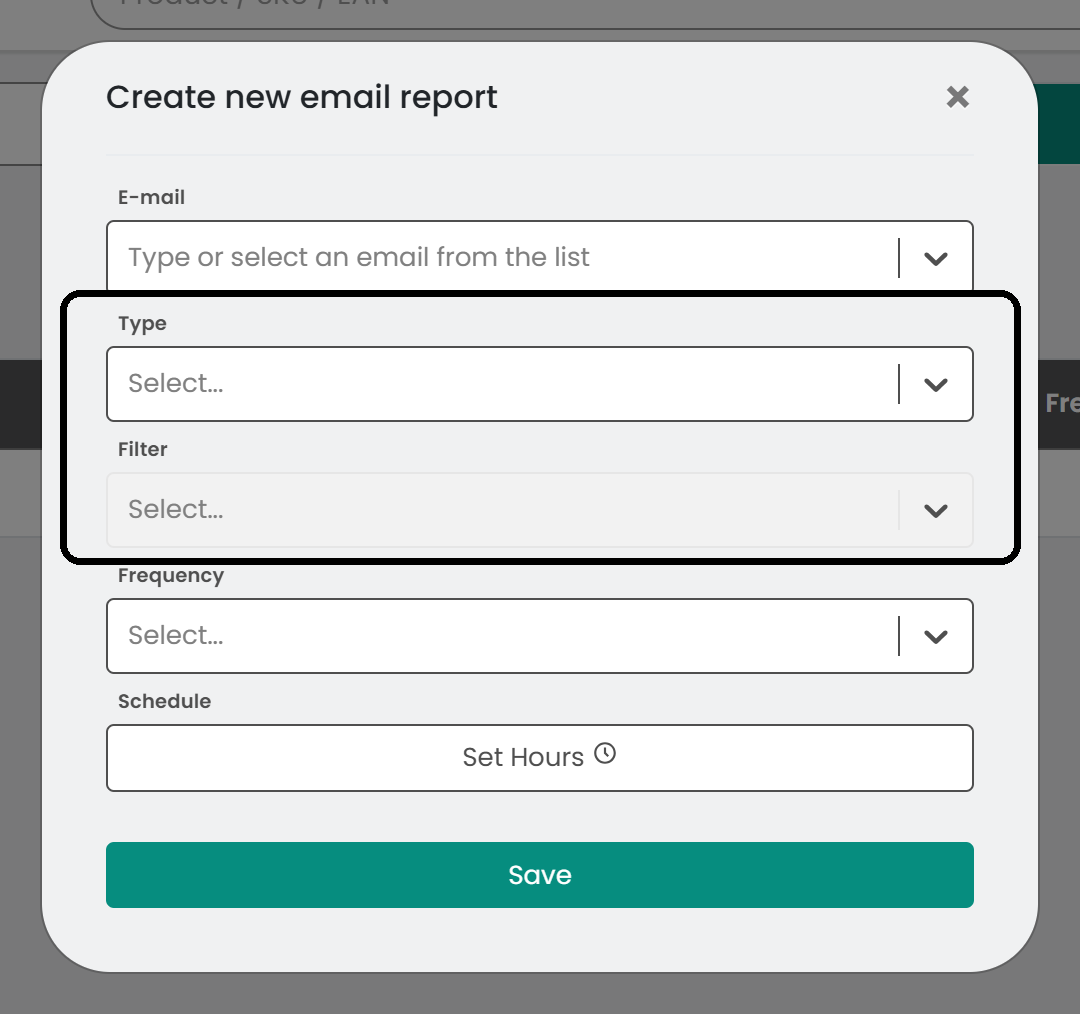
- Select the report Type and apply a Filter if you need one.
- Select the Frequency, then click Set Hours to choose when the report is sent. You can set up to six specific times per day.
- Click Save.
Manage your reports
The table lists all the reports you scheduled and their parameters. Use the action buttons to edit or delete a report.

Tip: Review your report parameters and email list regularly, so they match your current needs and everyone who needs the report receives it.
Was this article helpful?
That’s Great!
Thank you for your feedback
Sorry! We couldn't be helpful
Thank you for your feedback
Feedback sent
We appreciate your effort and will try to fix the article