My Products lists all your products with their prices across the shops you monitor. Use it to find products, choose the columns you see, save filters and export the list.
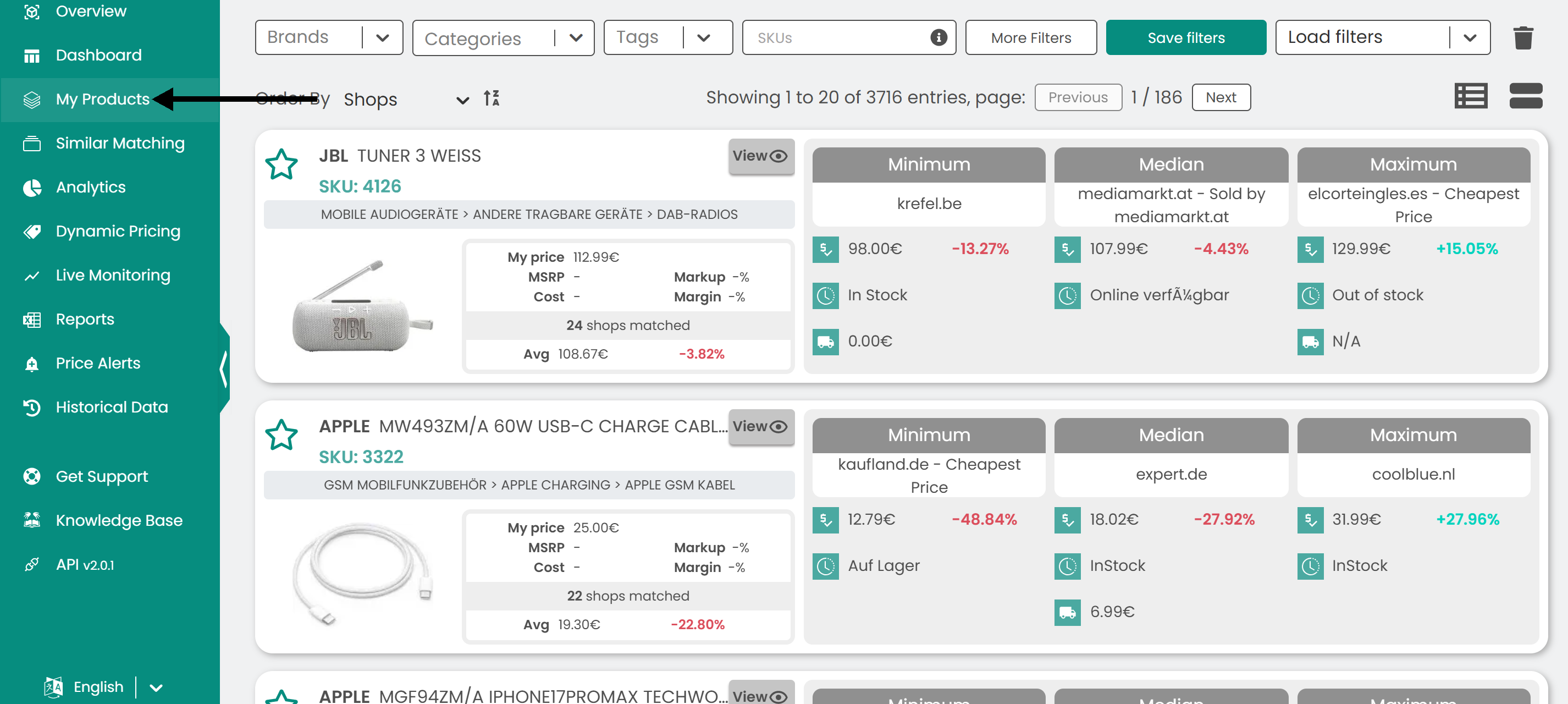
Click My Products in the left sidebar.
Read the product list
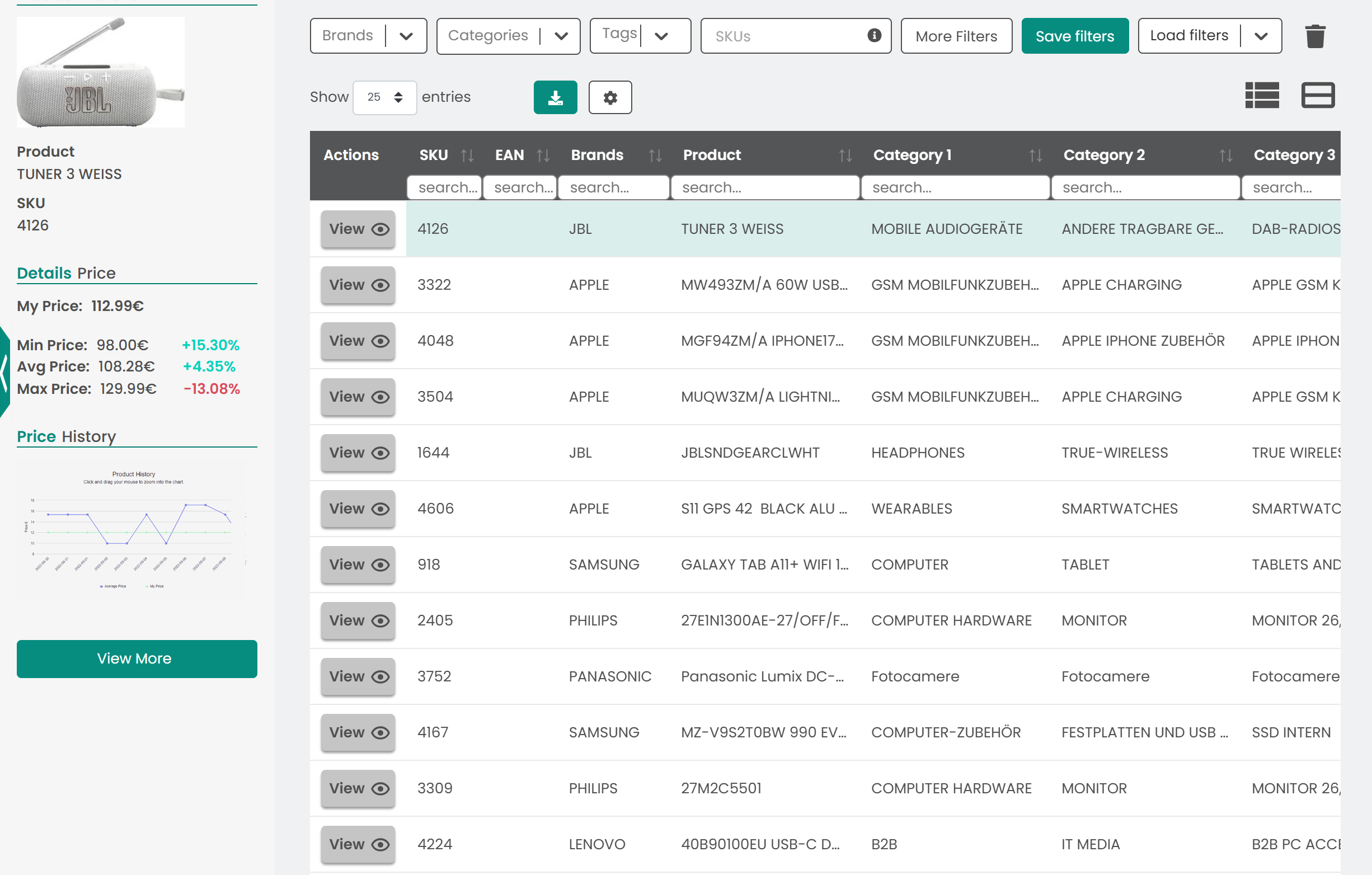
The page shows your products as cards. Click the list icon at the top right to switch to the table.
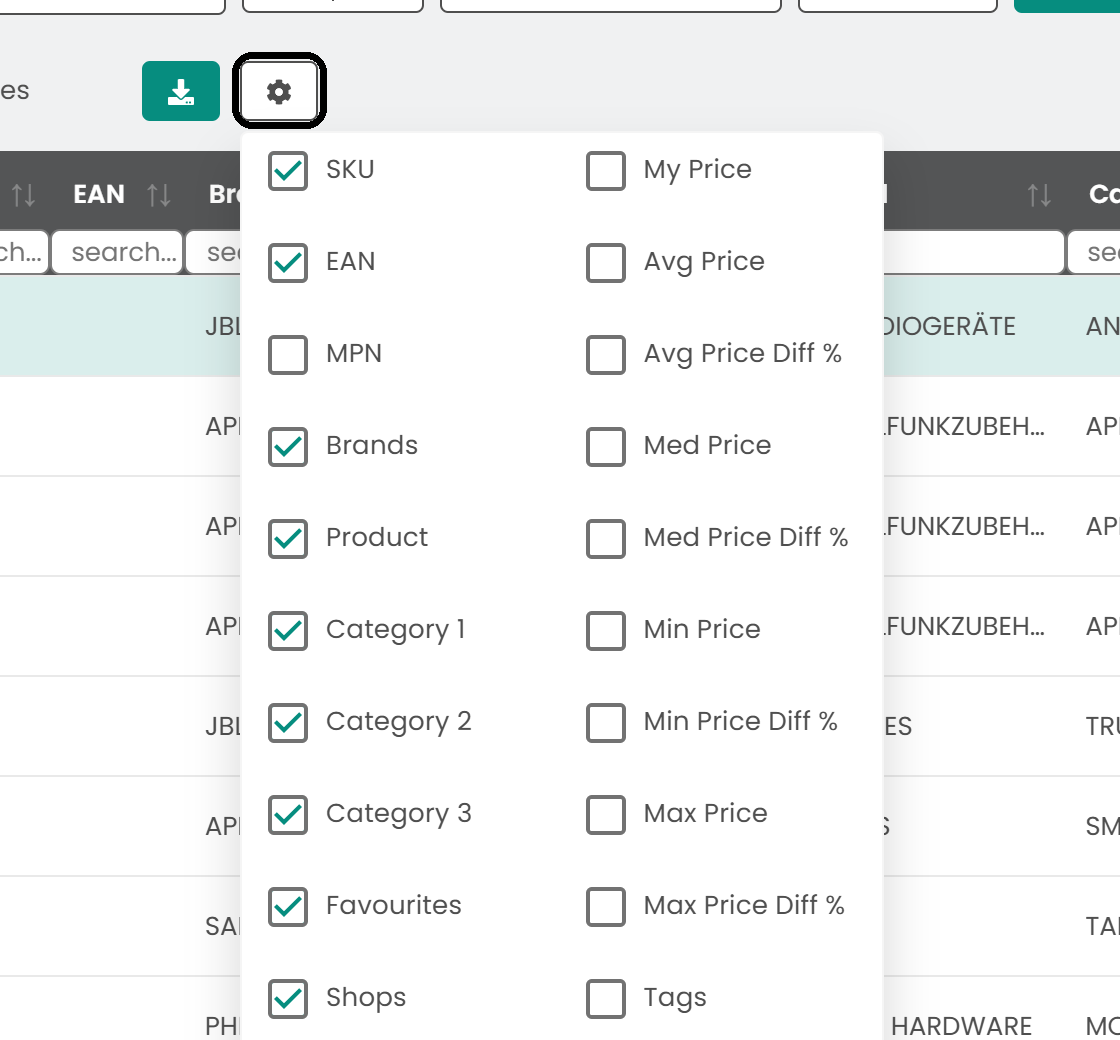
The table shows each product's SKU, EAN, brand, name and categories, whether it is a favorite, and the number of shops that sell it. Add more columns, such as MPN, My Price and the average, median, minimum and maximum prices, with the gear icon.
Filter the list
Use the Brands, Categories, Tags and SKUs filters at the top of the page. Click More Filters for more options.

Choose the columns
Click the gear icon above the table, then select the columns you want to show.
Open a product
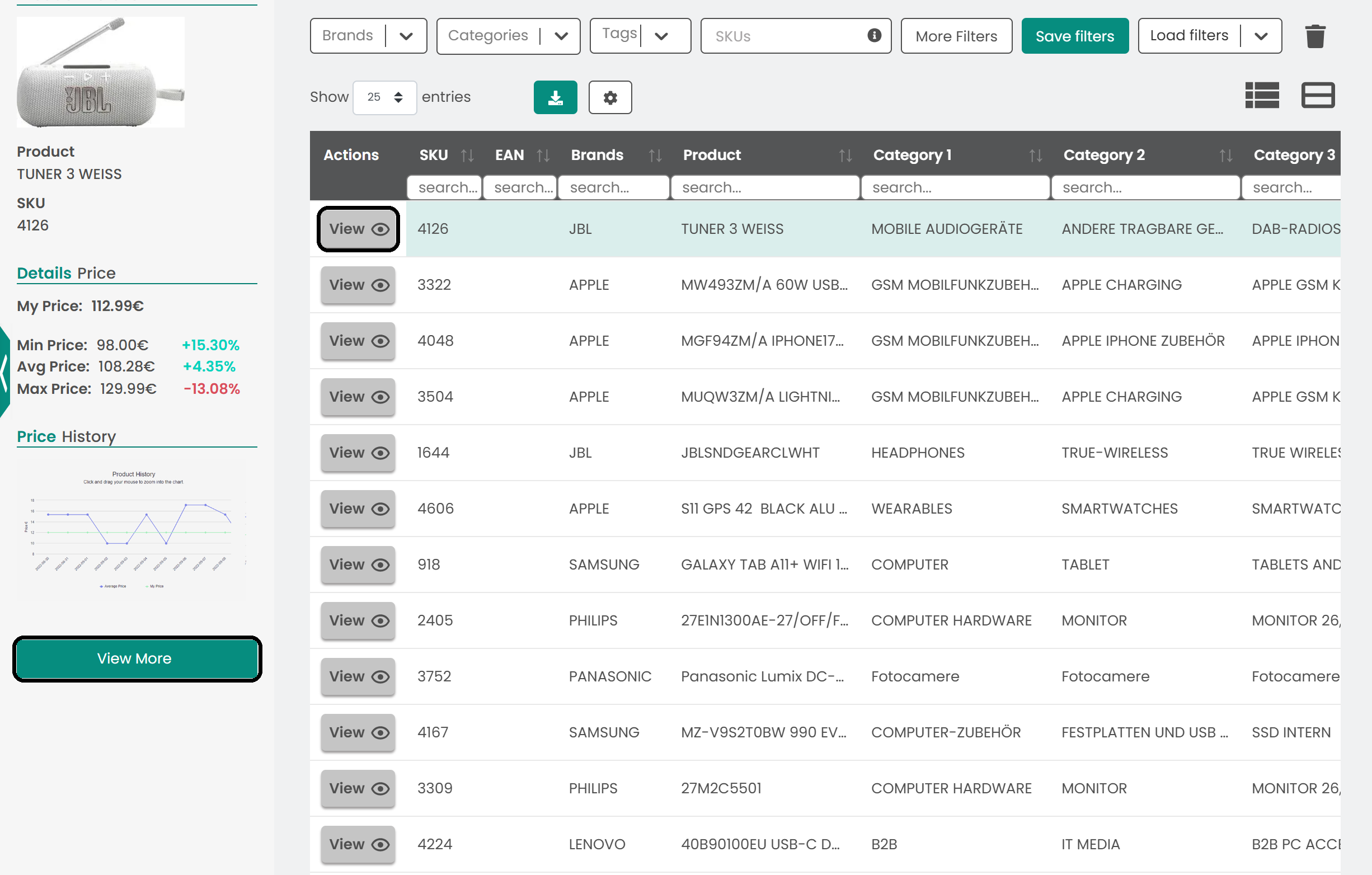
Click a product to see its photo and price details on the left. For more, click View More, or click View in the Actions column.
Save a filter
- Set the filters you want.
- Click Save filters.
- Select Save as new, give the filter a name and click Save filters.
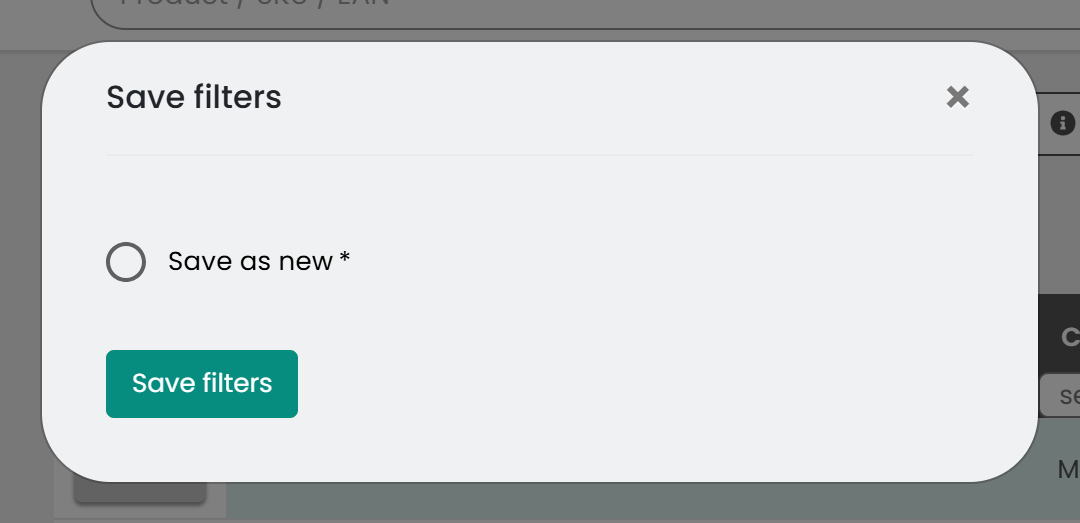
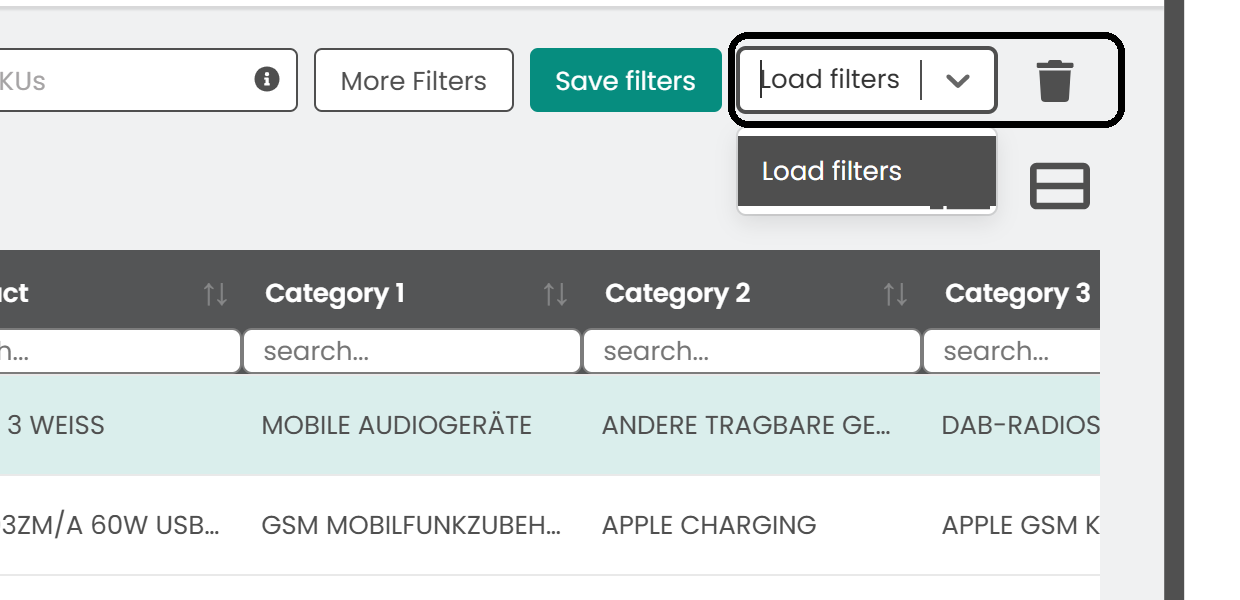
Your saved filters are in the Load filters list.
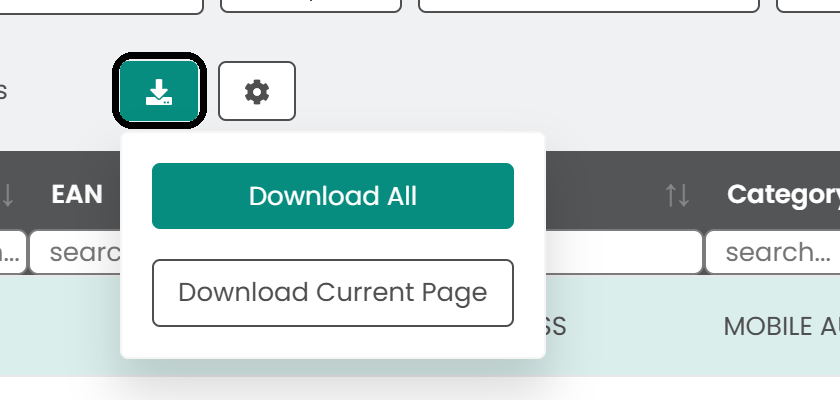
Export the list
Click the download button above the table, then choose Download All or Download Current Page.
Was this article helpful?
That’s Great!
Thank you for your feedback
Sorry! We couldn't be helpful
Thank you for your feedback
Feedback sent
We appreciate your effort and will try to fix the article