Use this article to log in to tgndata, or to join an account for the first time.
Tip: For the best experience, use the latest version of Google Chrome.
Log in
- Go to app.tgndata.com/login.
- Enter the email address you registered with and click Login.
- Enter your password and click Login again.
You can also sign in with Google or LinkedIn.
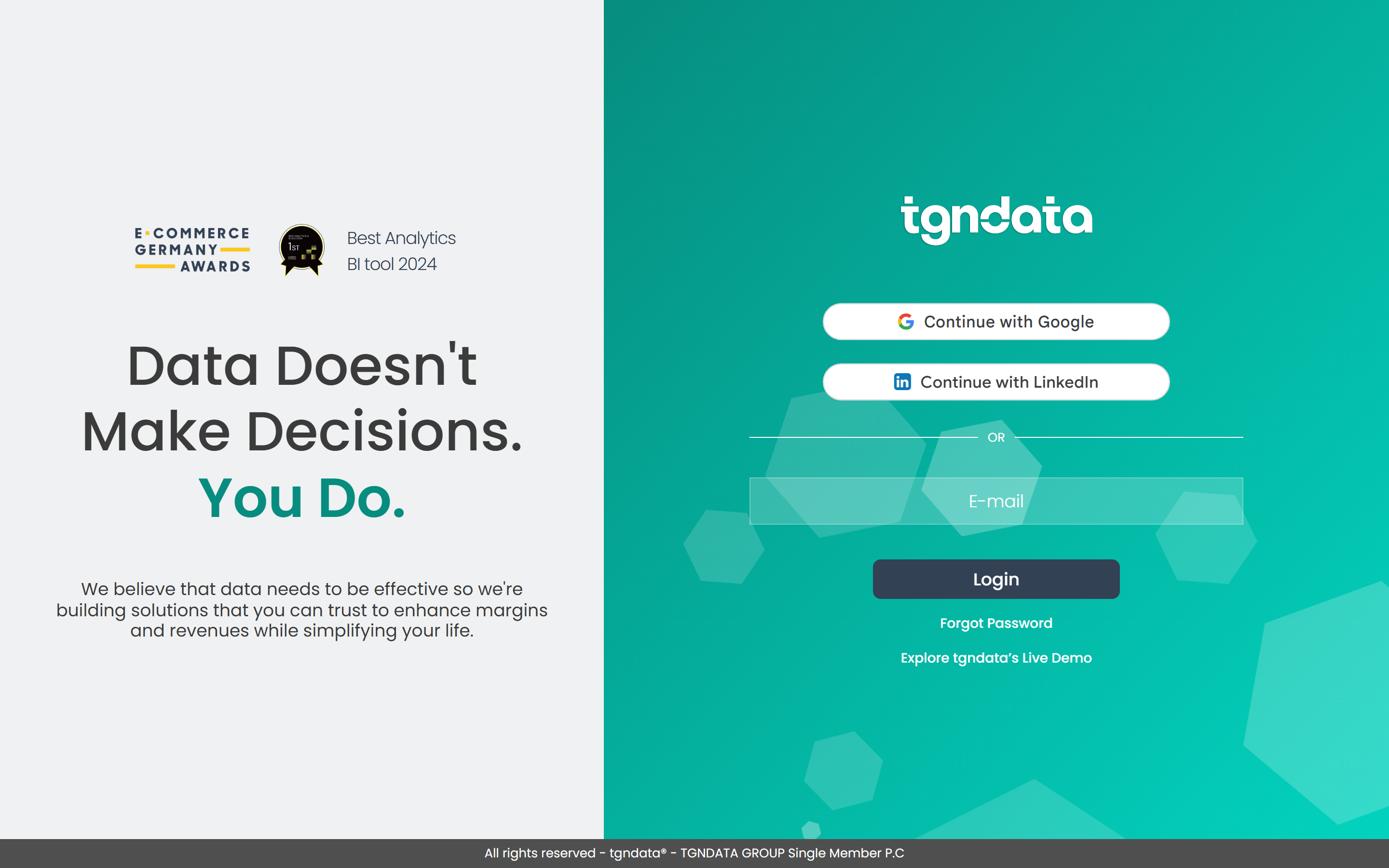
- If your company uses single sign-on (SSO), you are redirected to your company's sign-in page after you enter your email.
- If two-factor authentication is on, enter the 6-digit code we email you.
- If you do not remember your password, click Forgot password. See Reset your tgndata password.
- If you belong to more than one account, an account list appears after you log in. Click the account you want to sign in to. To switch accounts later, click Switch Account in the user menu.
Join an existing account for the first time
- Open the invitation email from your team and click Accept Invitation.
- You are signed in and asked to set a password. Enter a new password, confirm it and click Submit.
Note: The invitation link is valid for 24 hours. If it expires, ask your admin to send a new invitation.
Some accounts let everyone with a specific company email domain join without an invitation. To find out whether this applies to your company, or to add or remove a domain, contact your customer success manager.
Was this article helpful?
That’s Great!
Thank you for your feedback
Sorry! We couldn't be helpful
Thank you for your feedback
Feedback sent
We appreciate your effort and will try to fix the article