Use this article to create a rule that adjusts your product prices automatically, based on conditions you define.
Step 1: Open the rule form
- Click Dynamic Pricing in the left sidebar, then open the My Rules tab.
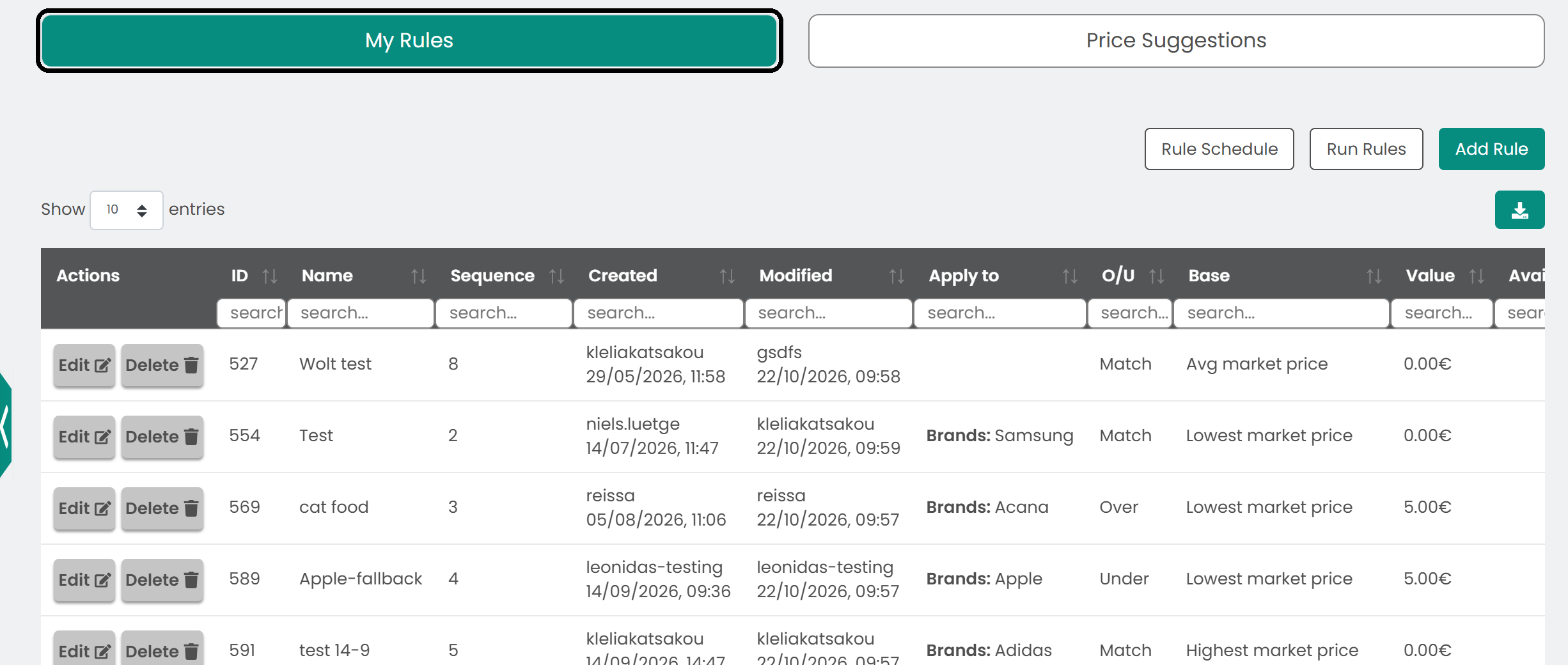
- Click Add Rule. The rule creation form opens.
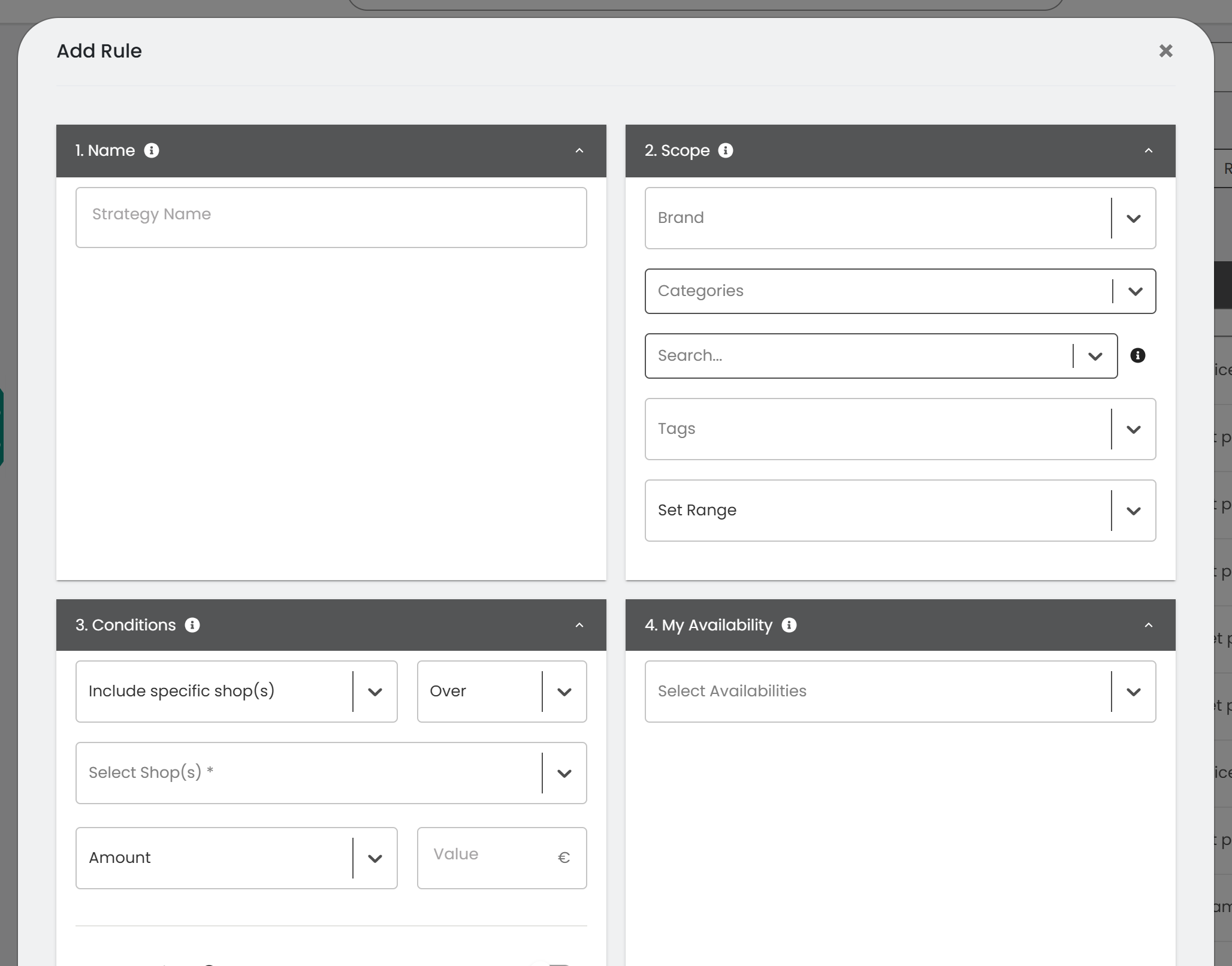
Step 2: Enter the basic information
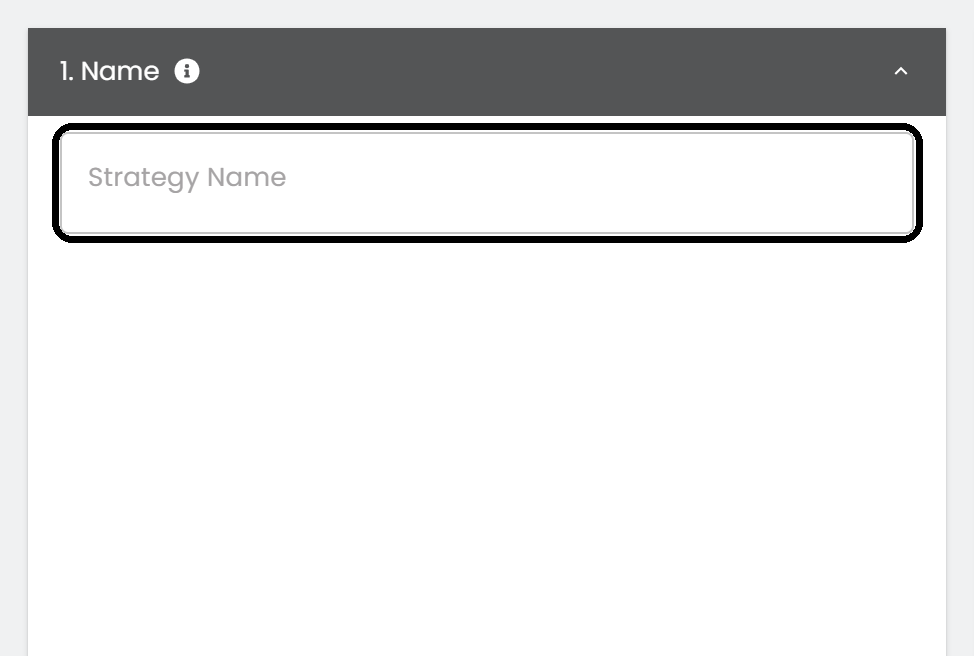
- Enter a Strategy Name that describes the purpose of the rule.
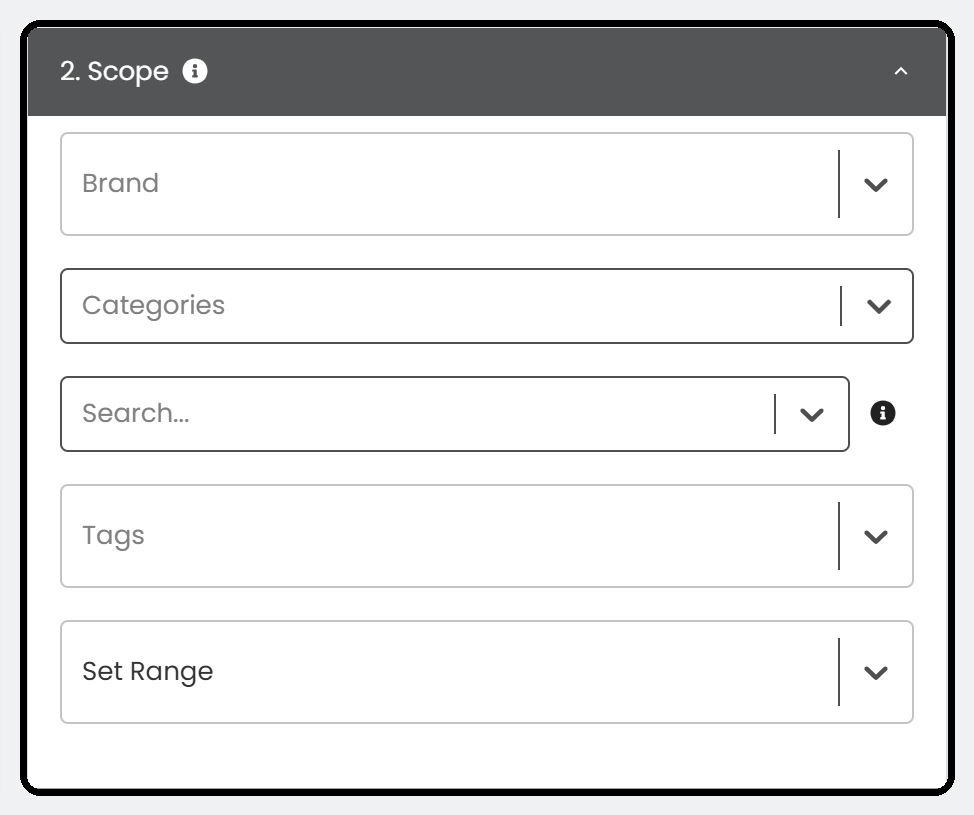
- To limit the rule to certain brands or categories, select them in the lists. You can also limit it by price range (by price, MSRP or cost).
- To target specific products, paste their SKUs separated by commas or spaces, or search for a product by name, SKU or EAN.
Note: When you select products, the brand selection is disabled.
Step 3: Define the rule
- Choose the reference price: specific shops to include or exclude, or the lowest, highest, average or median market price (with or without your own price).
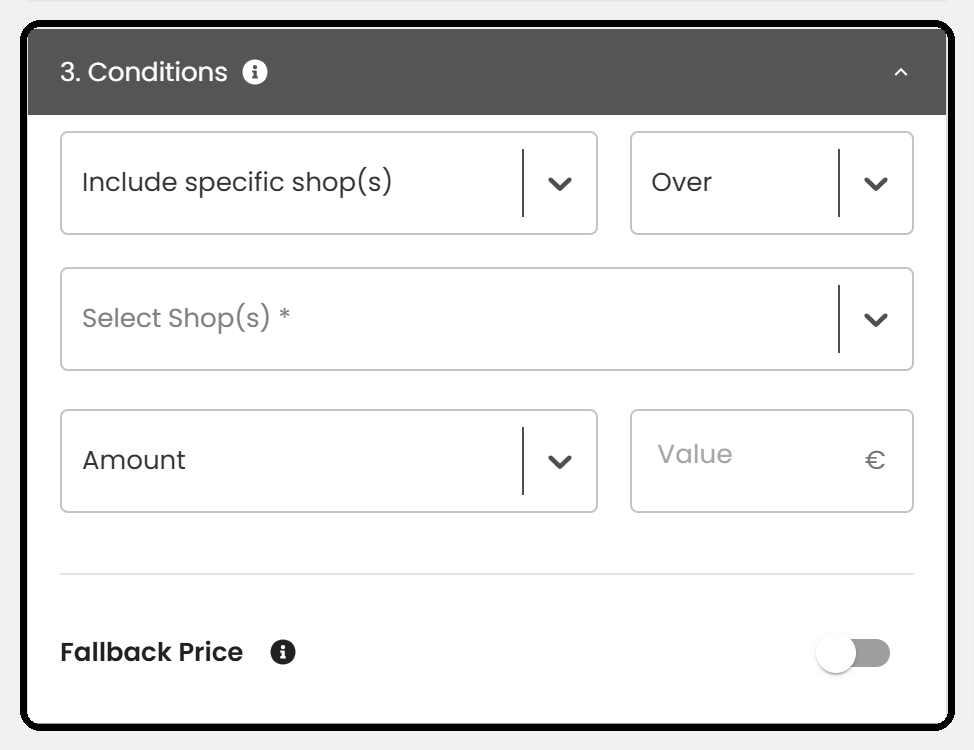
- Choose whether your price should be over, under or equal to the reference price, and set the amount as a percentage or a fixed value.
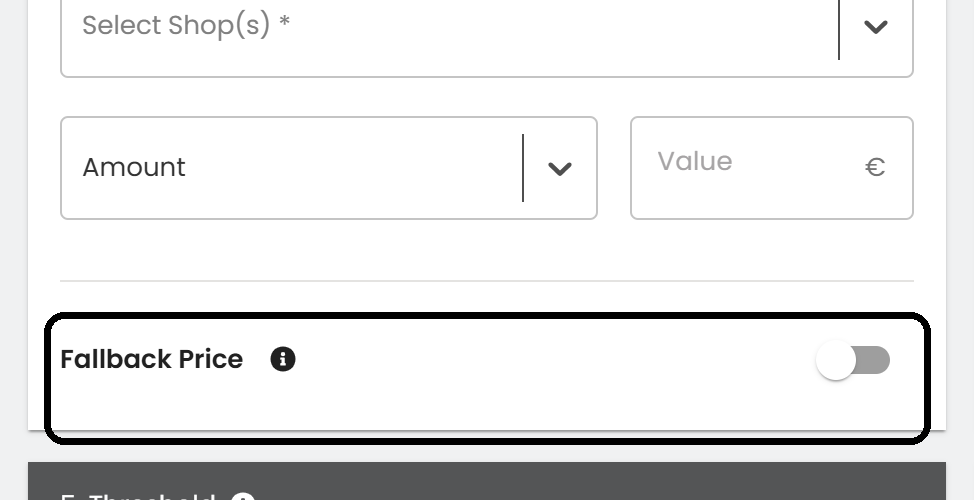
- Optional: turn on Fallback Price and set a minimum and maximum price. These are used when the calculated price falls outside your limits.
Step 4: Choose the availability
Choose the availabilities a product must have for the rule to apply.
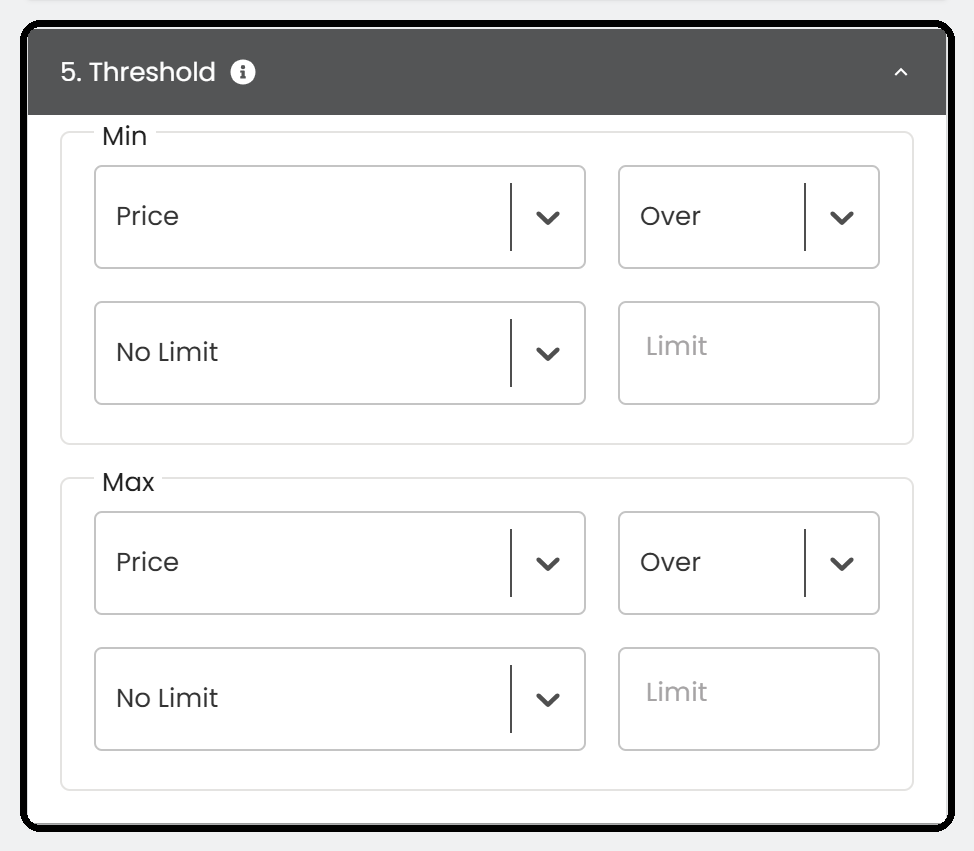
Step 5: Set the threshold
Protect your margins with the Threshold parameters. Set a Min and/or Max limit as an amount or percentage above or below your current price, cost or MSRP. If the calculated price breaks a limit, the rule is not applied to that product.
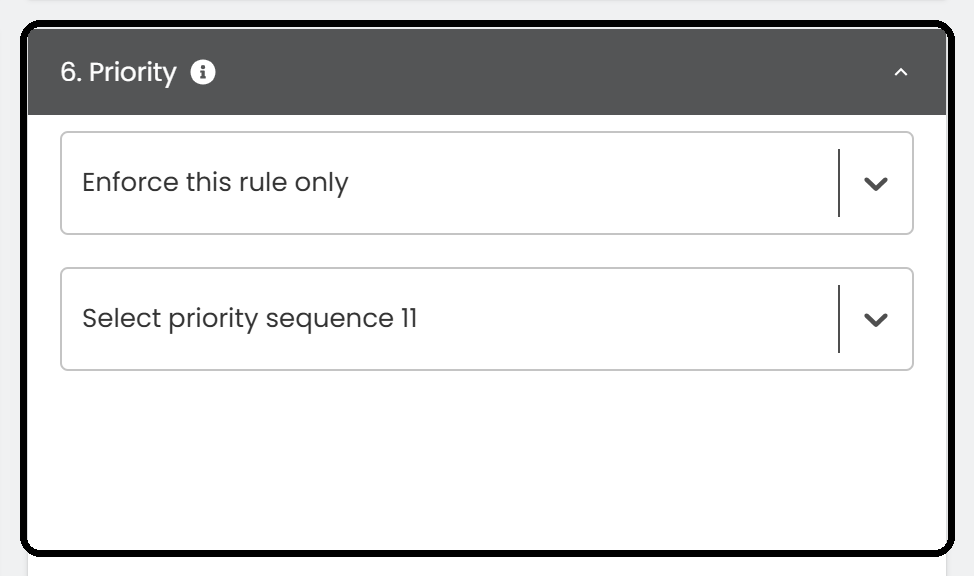
Step 6: Set the priority
Set the priority of the rule in relation to your other rules. The priority decides which rule applies when several rules could apply to the same product.
Step 7: Review and save
- Check that all fields are correct. At the bottom you can see how many of your products the rule affects.

- Click Submit to save the rule.
Tip: After saving, check the effect of the rule on your prices in Price Suggestions, and adjust the rule if needed.
Was this article helpful?
That’s Great!
Thank you for your feedback
Sorry! We couldn't be helpful
Thank you for your feedback
Feedback sent
We appreciate your effort and will try to fix the article