Market Activity shows at which hours of the day the shops you monitor change their prices. Use it to find the most active times for price updates.
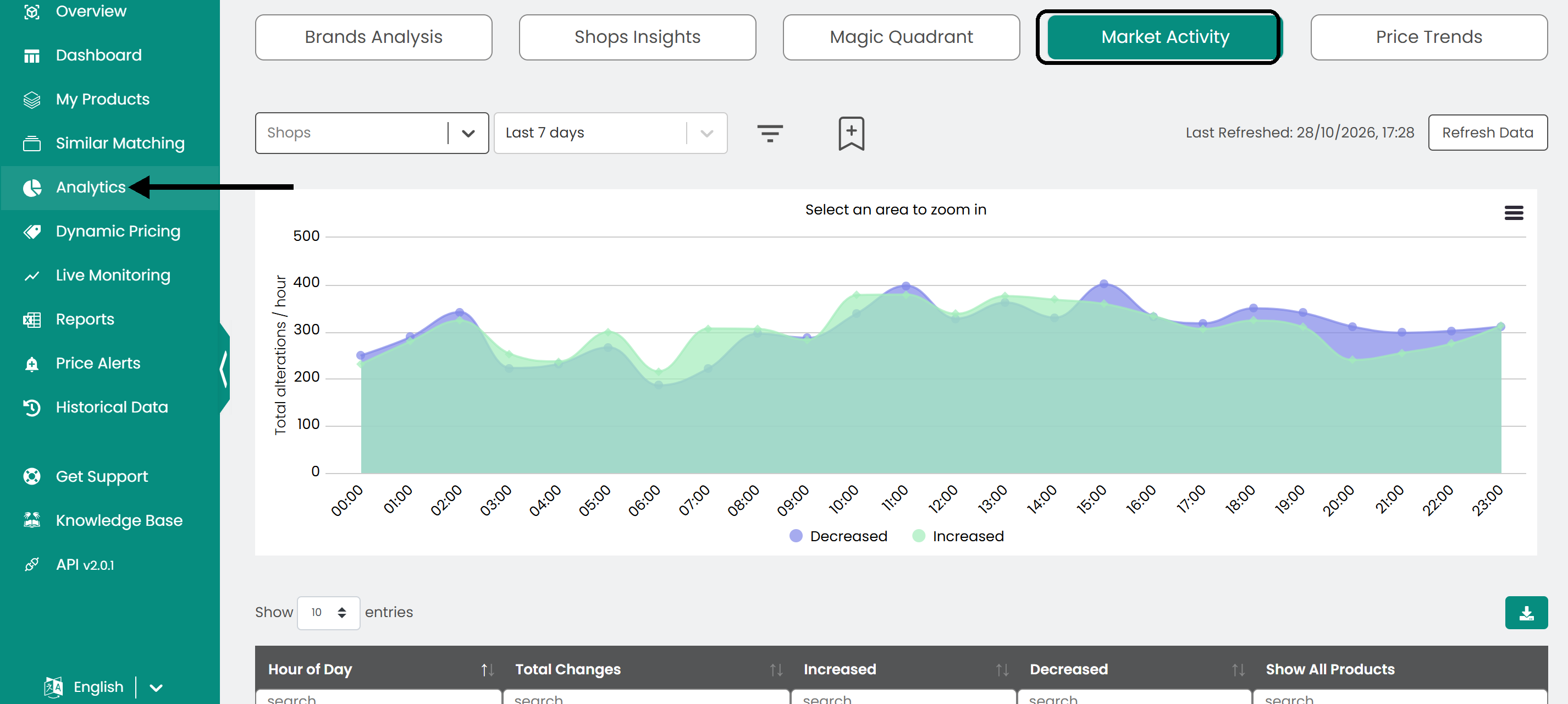
Open it from Analytics in the left sidebar, then click the Market Activity tab.
Read the graph and table
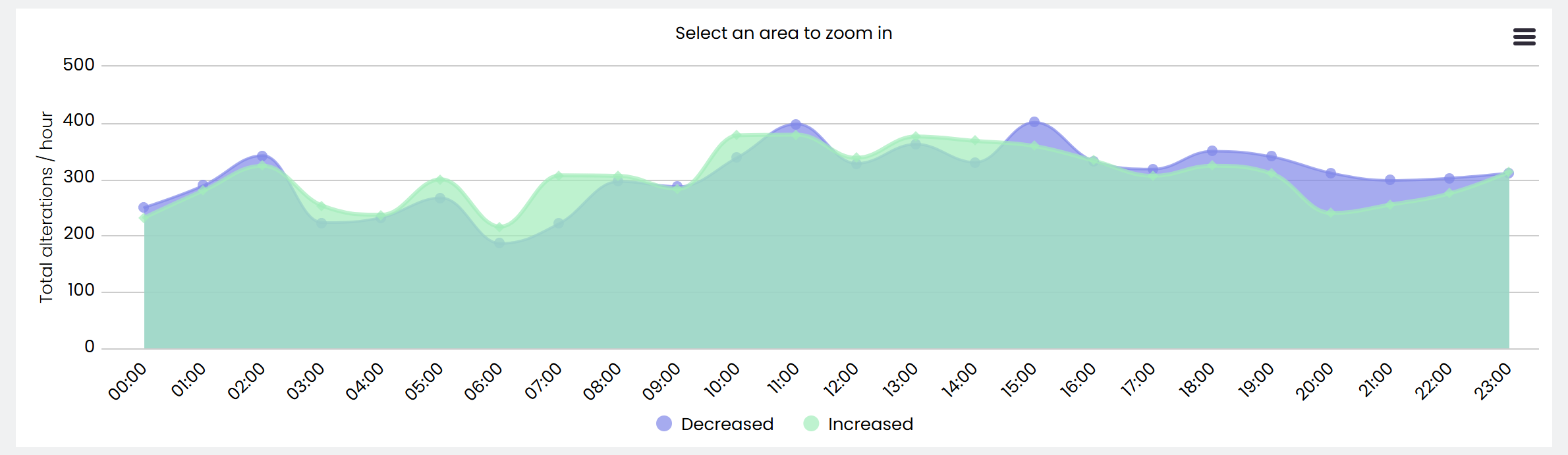
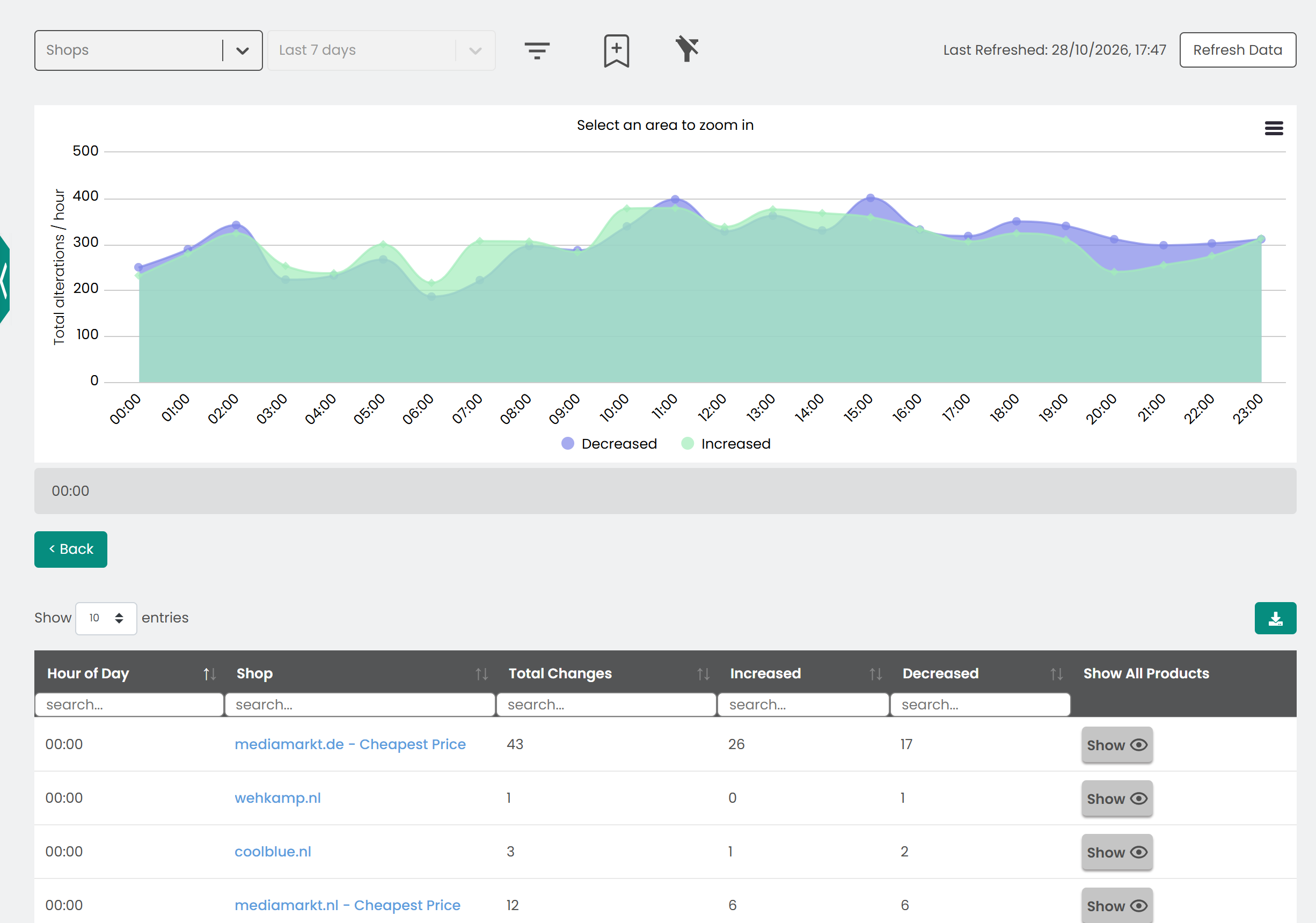
- Graph: The distribution of price changes across the hours of the day. Price increases and decreases have different colors.
- Table: The exact number of price changes at each hour of the day, with the columns Hour of Day, Total changes, Increased and Decreased. Click the eye button in Show All Products to see all the products for that hour.
Filter the data
Hover over the chart to see the number of price increases and decreases for each time point across all shops and products. To look closer at a period, select an area of the chart to zoom in.
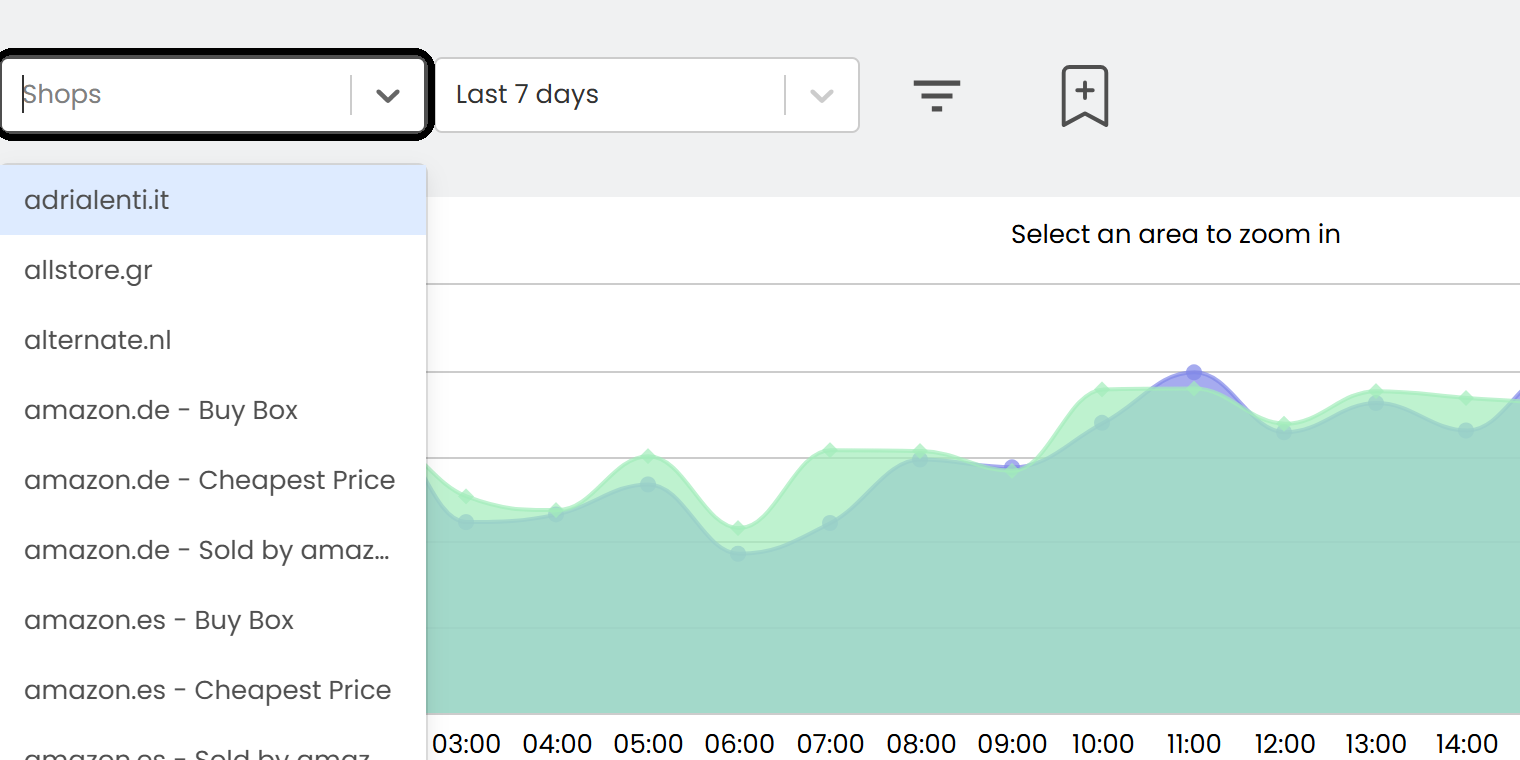
Select one or more shops in the list. The chart updates with your selection.
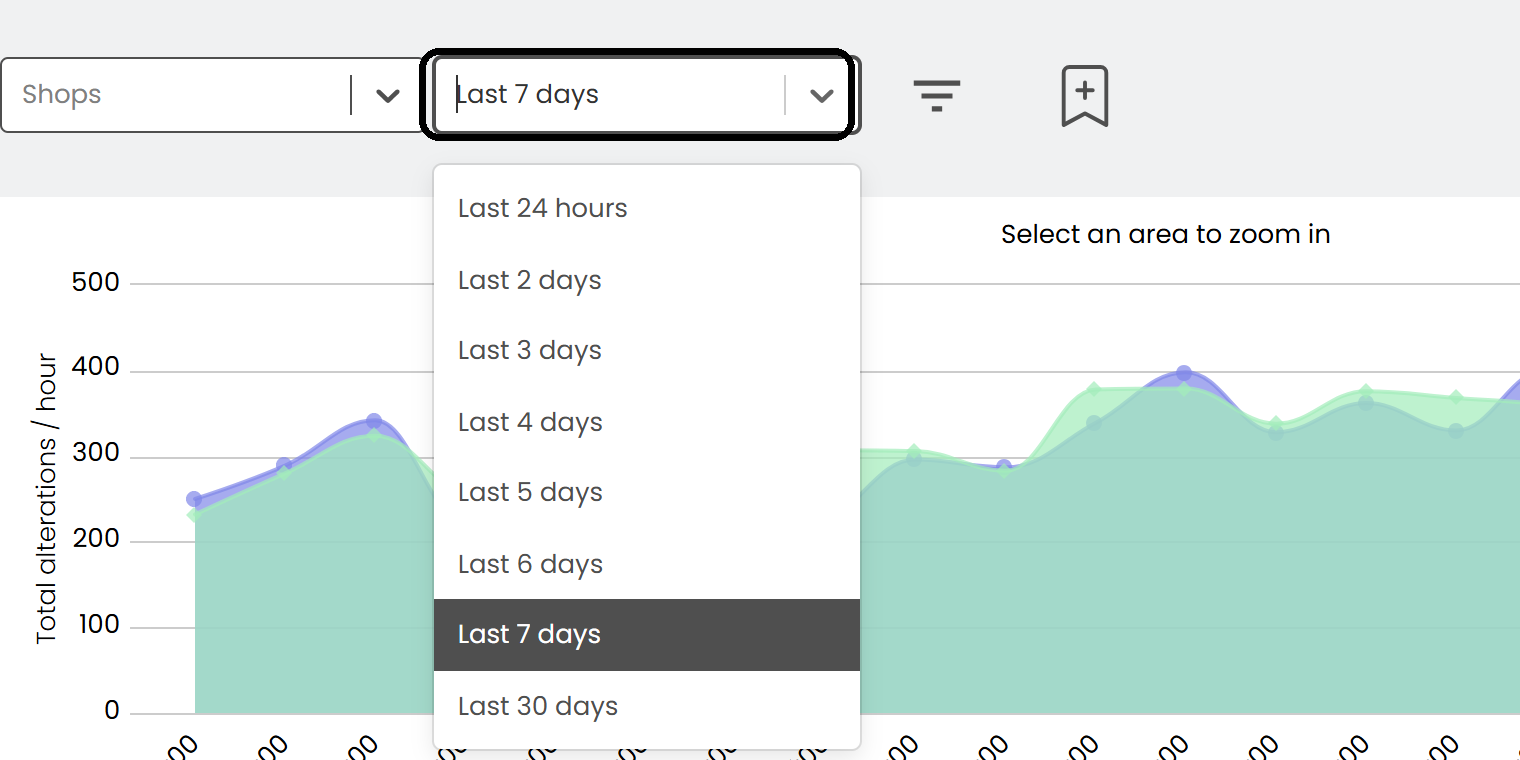
Choose the period in the time period list, from the last 24 hours up to the last 30 days. Click More filters to filter by tags, SKU or availability.
Note: The default time period is 7 days.
Explore the details
In the table, click a column header to sort. Type in the box under a header to filter the rows.


Use the Show entries list to change how many rows are shown.

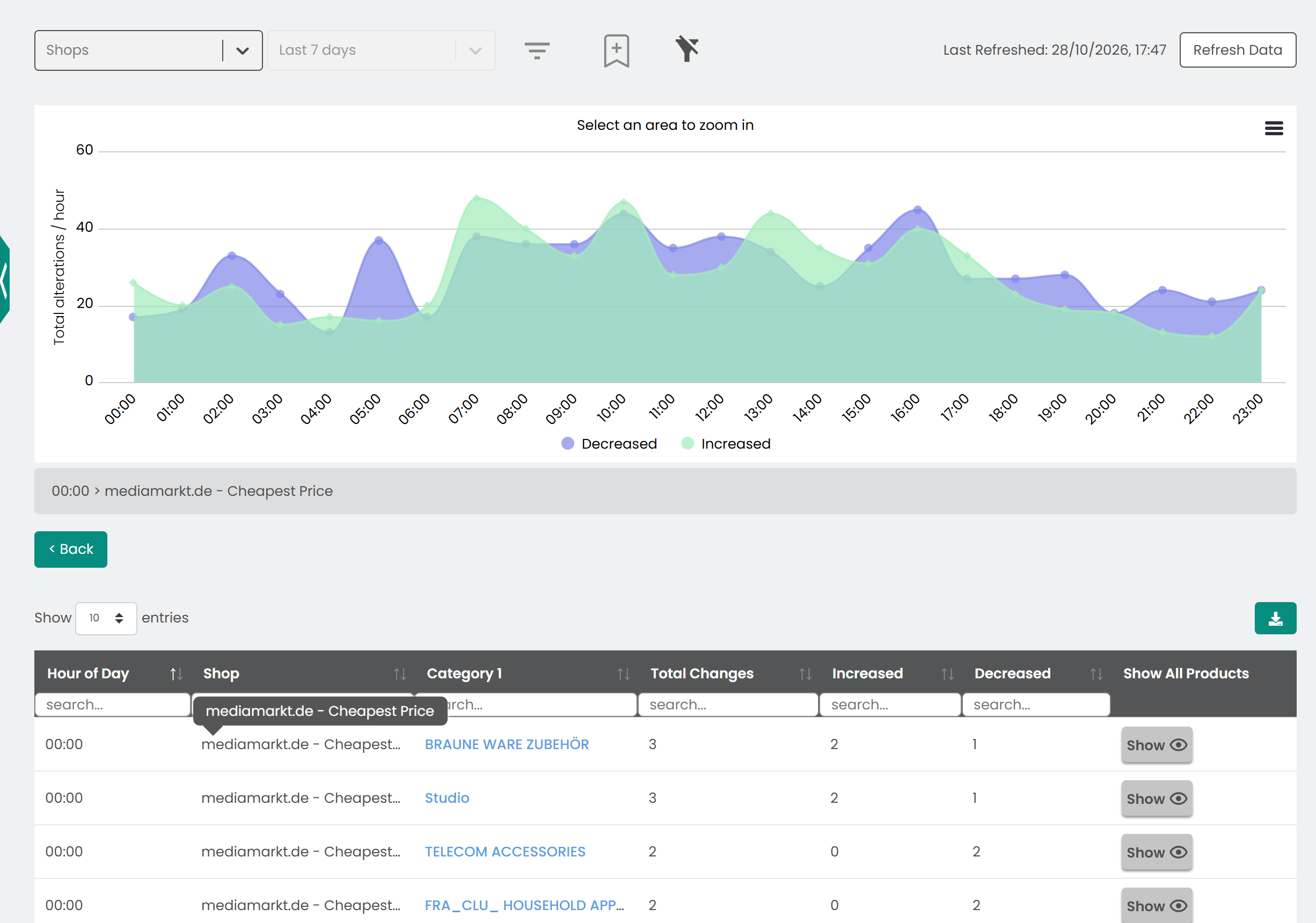
Click a time point to see all the data for that hour. Click a shop name to see more about that shop, then a category name to go down to the product names.
Export the data
To use the data elsewhere, click the download button above the table to save it as a CSV file.

Was this article helpful?
That’s Great!
Thank you for your feedback
Sorry! We couldn't be helpful
Thank you for your feedback
Feedback sent
We appreciate your effort and will try to fix the article