Single sign-on (SSO) lets your team sign in to tgndata with their company account. Admins set it up once in Team Management.
Note: SSO is available on the Enterprise plan. If you are on the Enterprise plan and cannot find the SSO option, contact tgndata support.
You also need access to your Google Admin console or your Microsoft Azure portal.
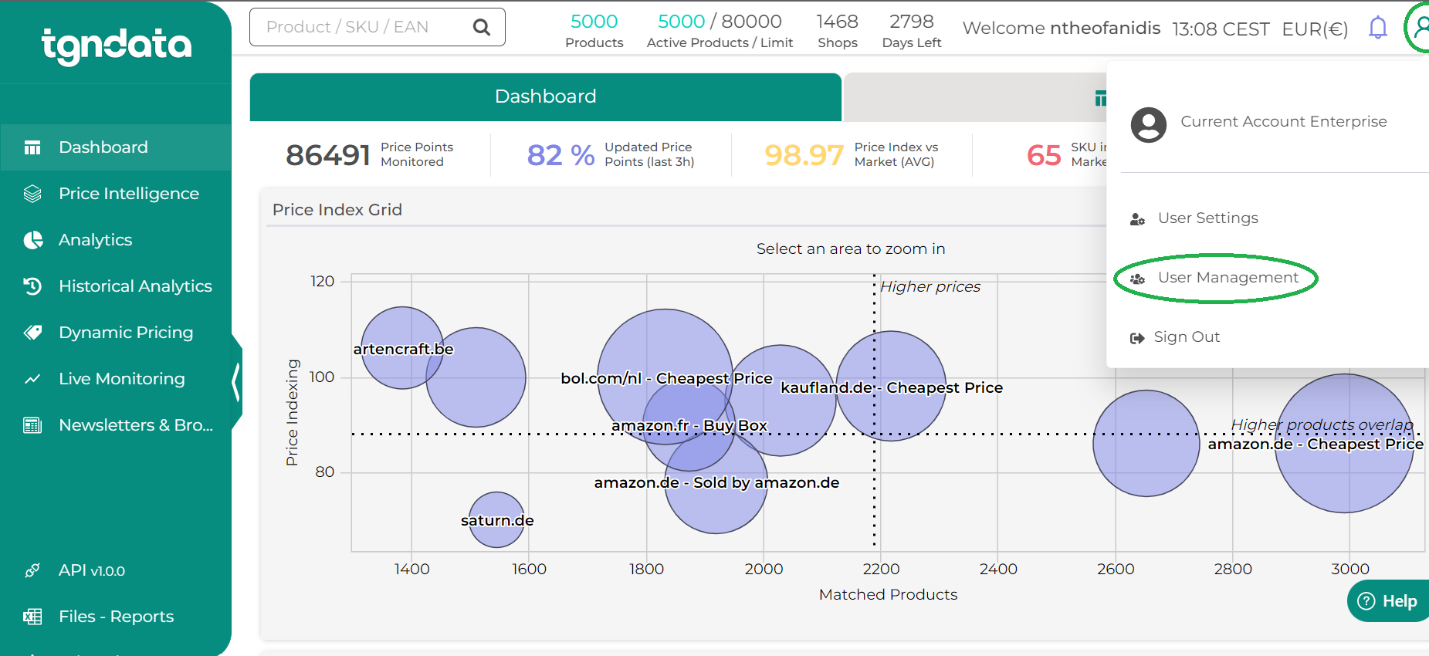
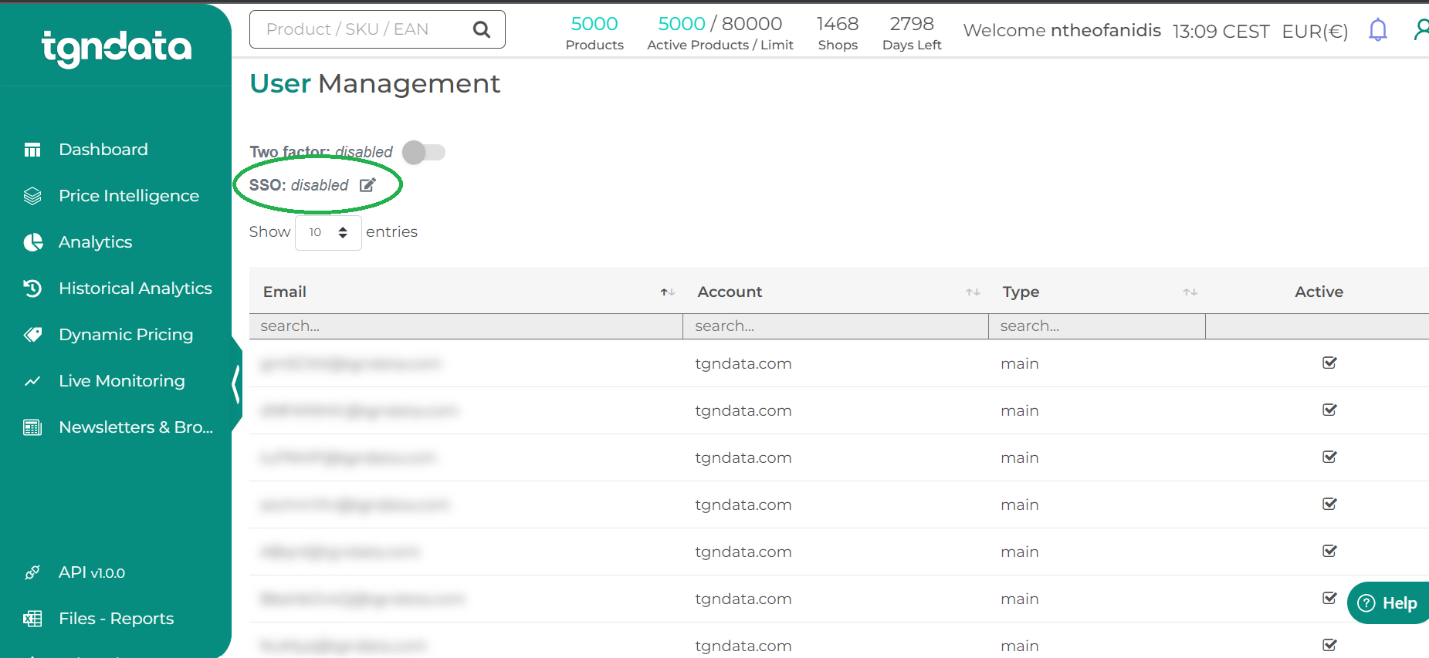
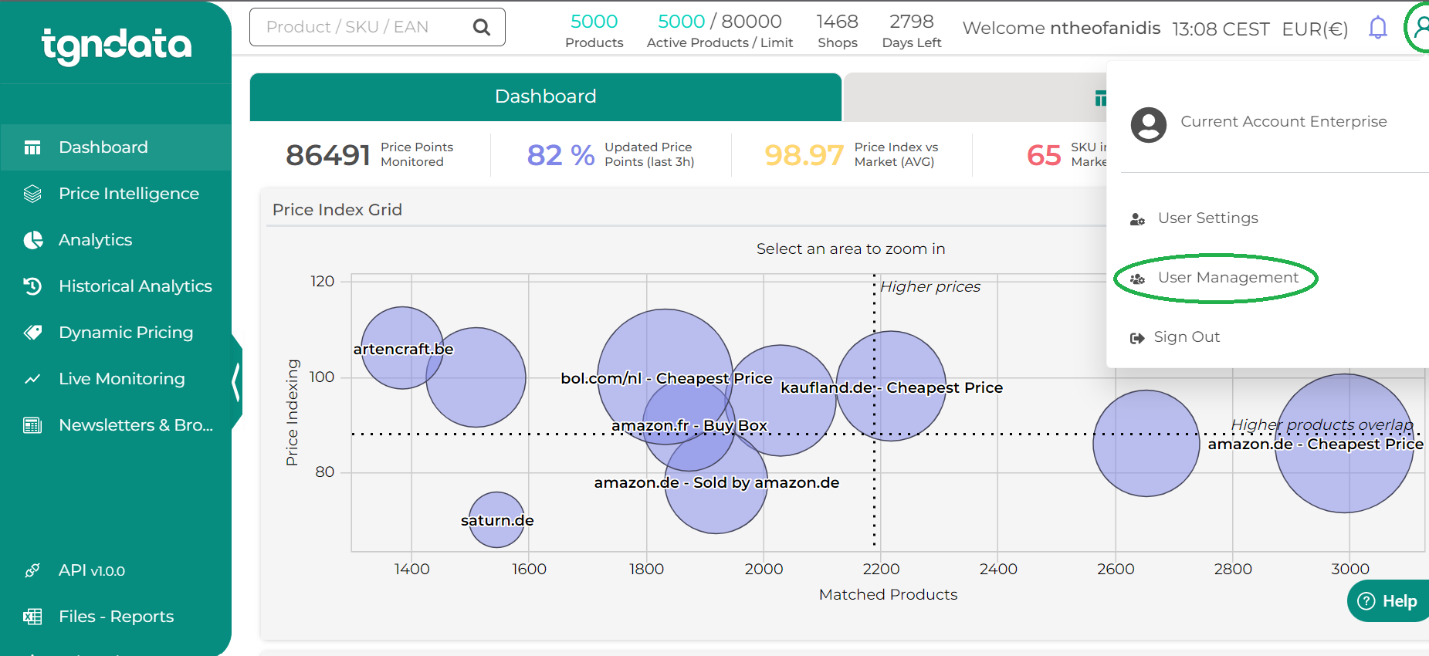
To open the SSO settings, click the profile icon in the top right corner, select Team Management Settings, and click the edit icon next to SSO in the Team Management tab.

Set up SSO with Google
Step 1: Add a custom SAML app in Google
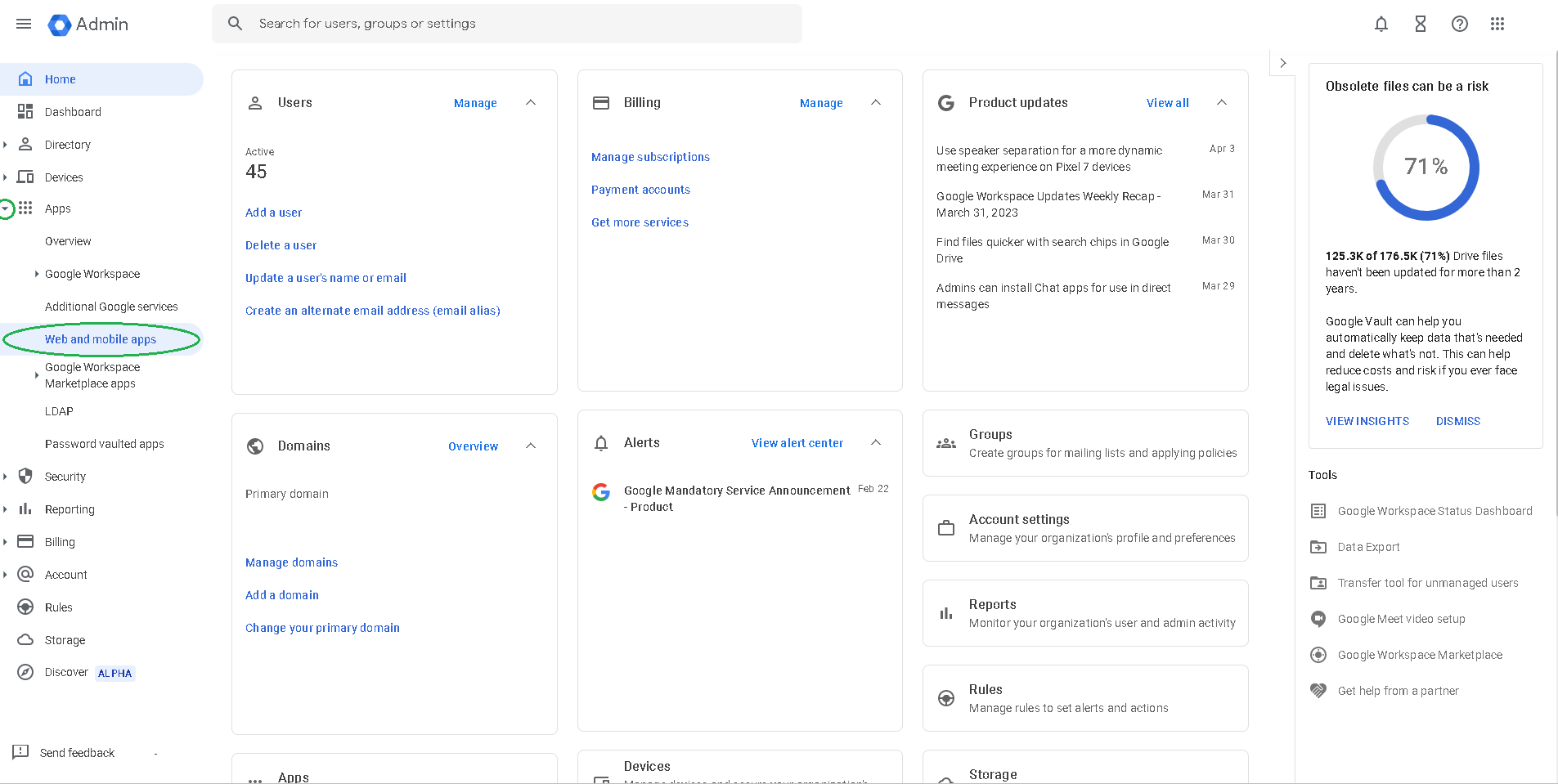
- Sign in to your Google Admin console. In the left panel, click the arrow next to Apps, then click Web and mobile apps.
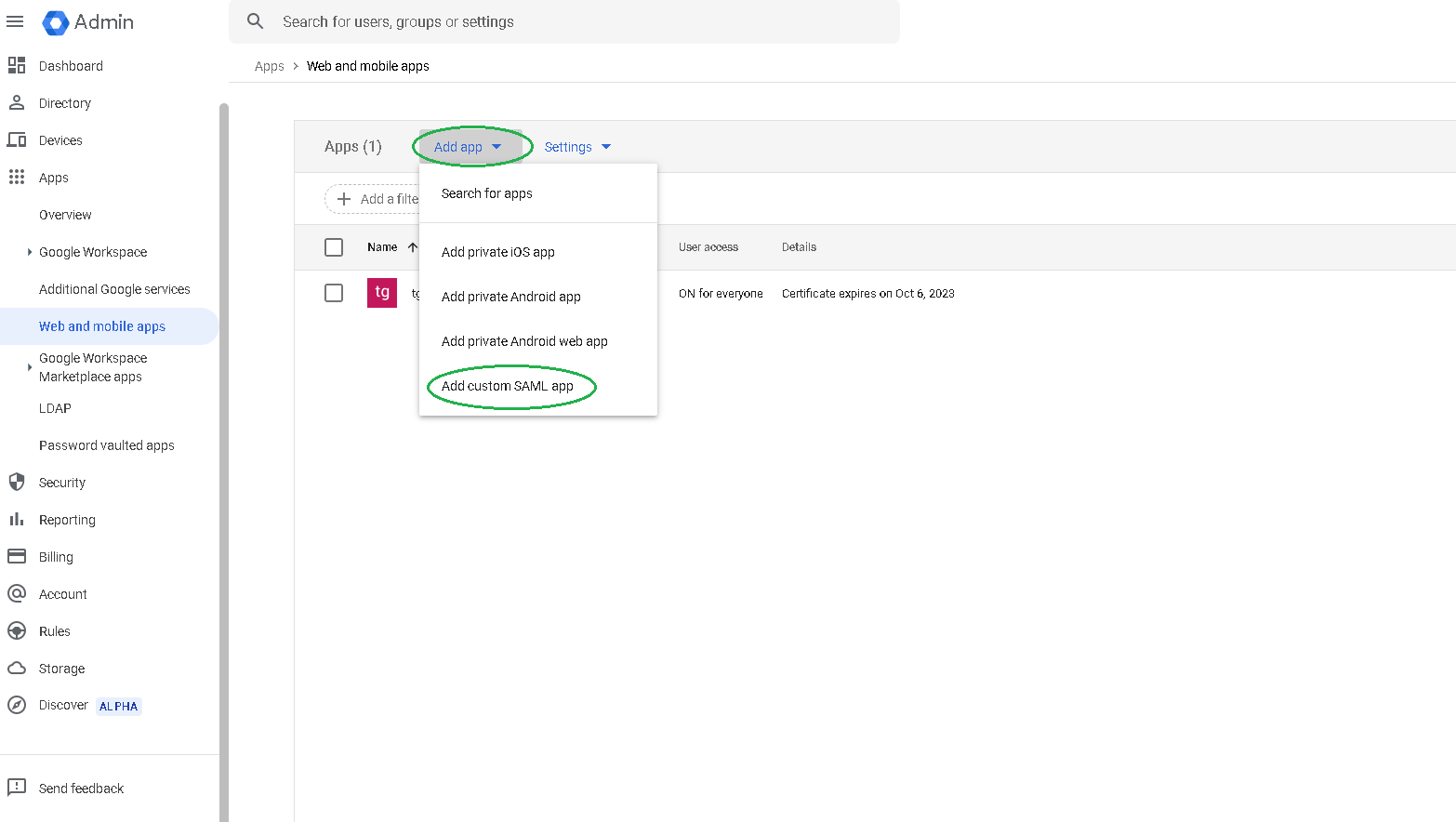
- Click Add app, then select Add custom SAML app.
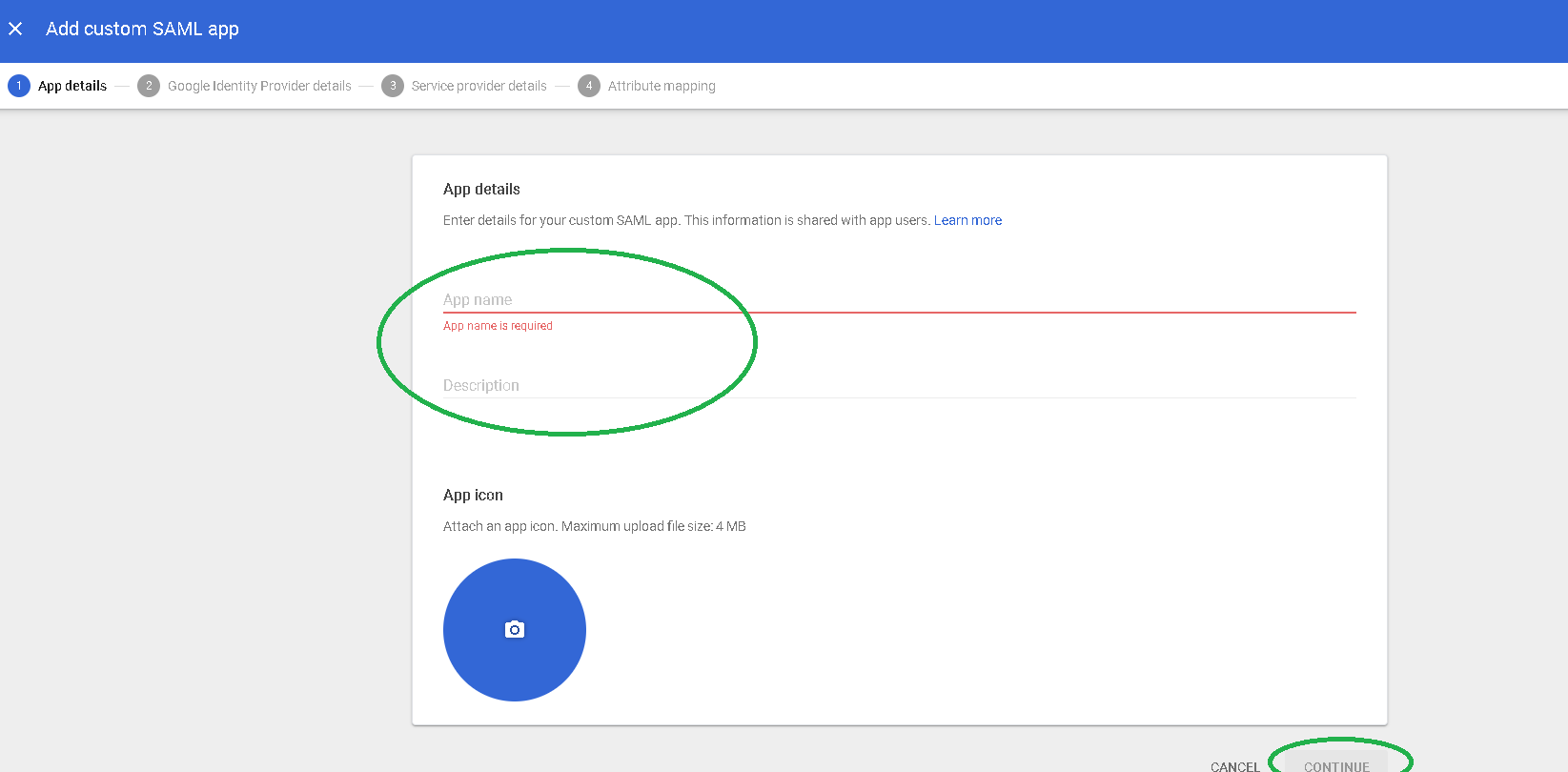
- Give the app a name, for example tgndataSSO, and click Continue at the bottom right.
- Click the copy icon next to SSO URL, Entity ID and Certificate, and save each value for Step 2. Then click Continue.
Step 2: Enter the Google values in tgndata
- In another browser tab, sign in to tgndata and open the SSO settings (see the path above).
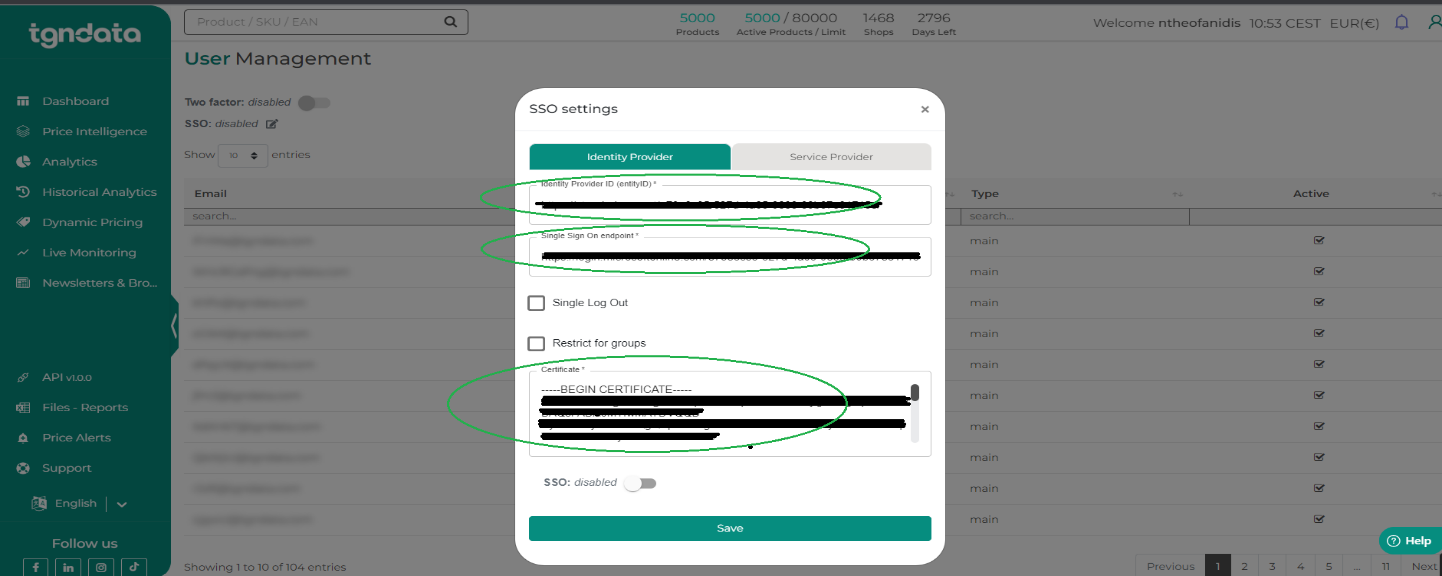
- Open the Identity Provider tab. Paste the Entity ID from Google into Identity Provider ID, the SSO URL into Single Sign On endpoint, and the Certificate into Certificate.
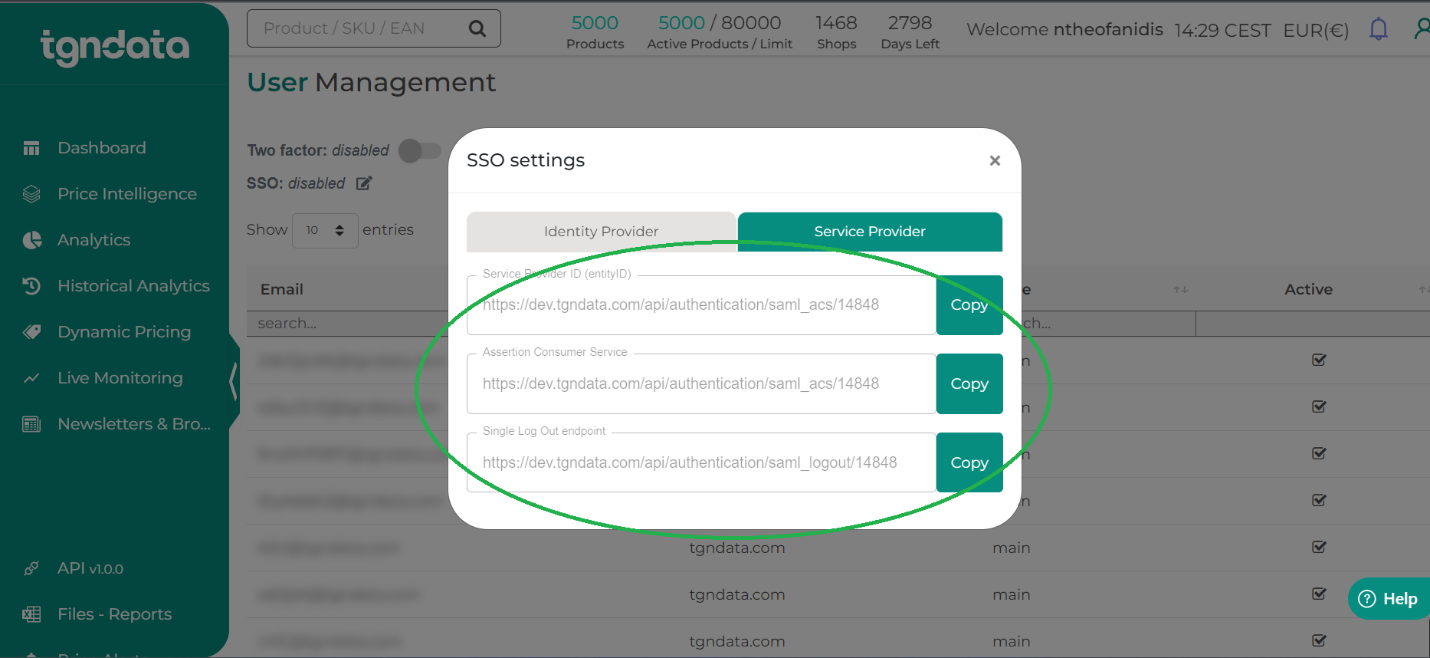
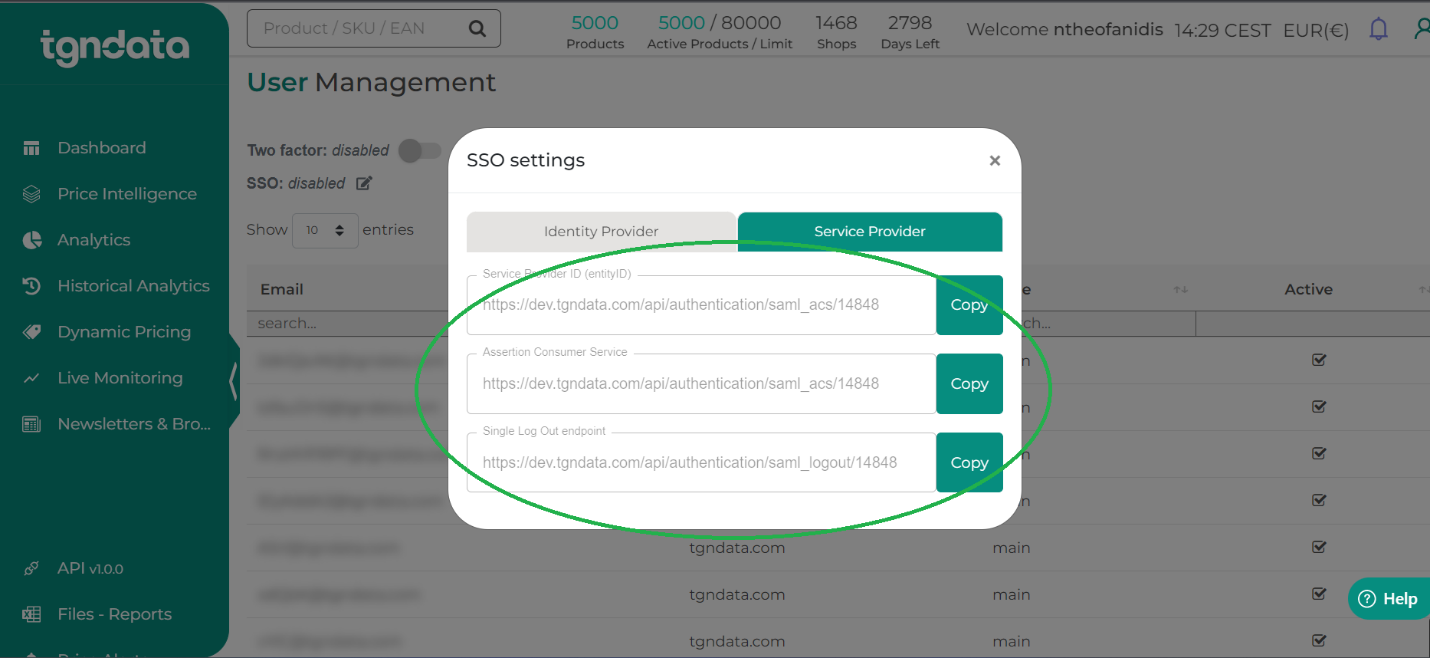
- Open the Service Provider tab. Copy the Service Provider ID and the Assertion Consumer Service values for Step 3.
Step 3: Enter the tgndata values in Google
- Go back to the Google tab.
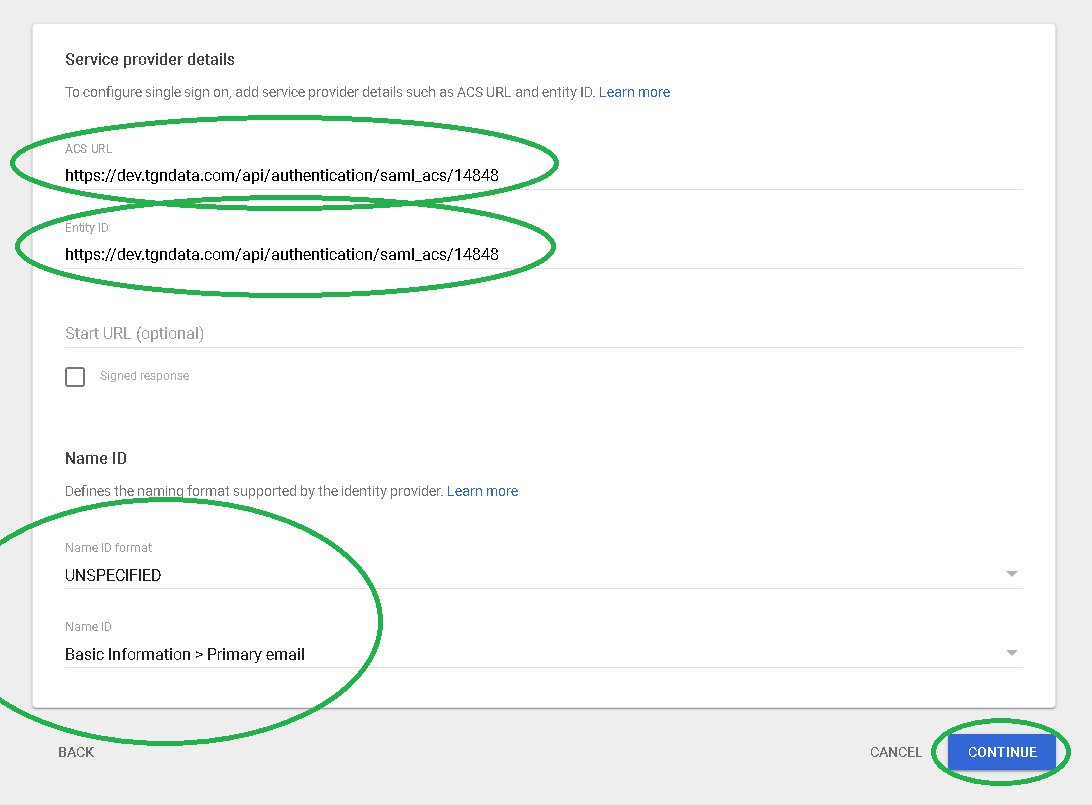
- Enter the Service Provider ID as Entity ID and the Assertion Consumer Service as ACS.
- Make sure Name ID is set to Basic Information > Primary email and Name ID Format is set to EMAIL.
- Click Continue at the bottom of the screen.
Step 4: Restrict access by attribute (optional)
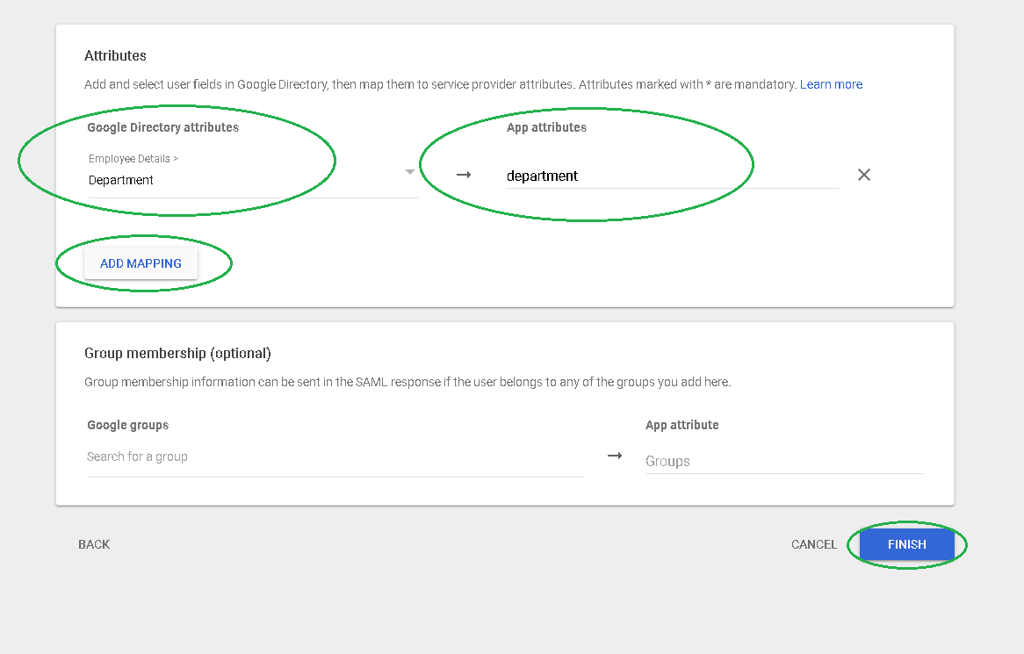
Use this step to limit access to tgndata based on the value of an attribute, for example Department.
- In Google, on the next page, add the attribute mapping and give it an App attributes name, for example department. Copy that name.
- Click Finish at the bottom of the screen.
- In tgndata, open the Identity Provider tab of the SSO settings and select Restrict for groups.
- In Attribute Name, enter the name you copied from Google, for example department. In Allowed values, enter the values the attribute is allowed to have.
Step 5: Turn on SSO
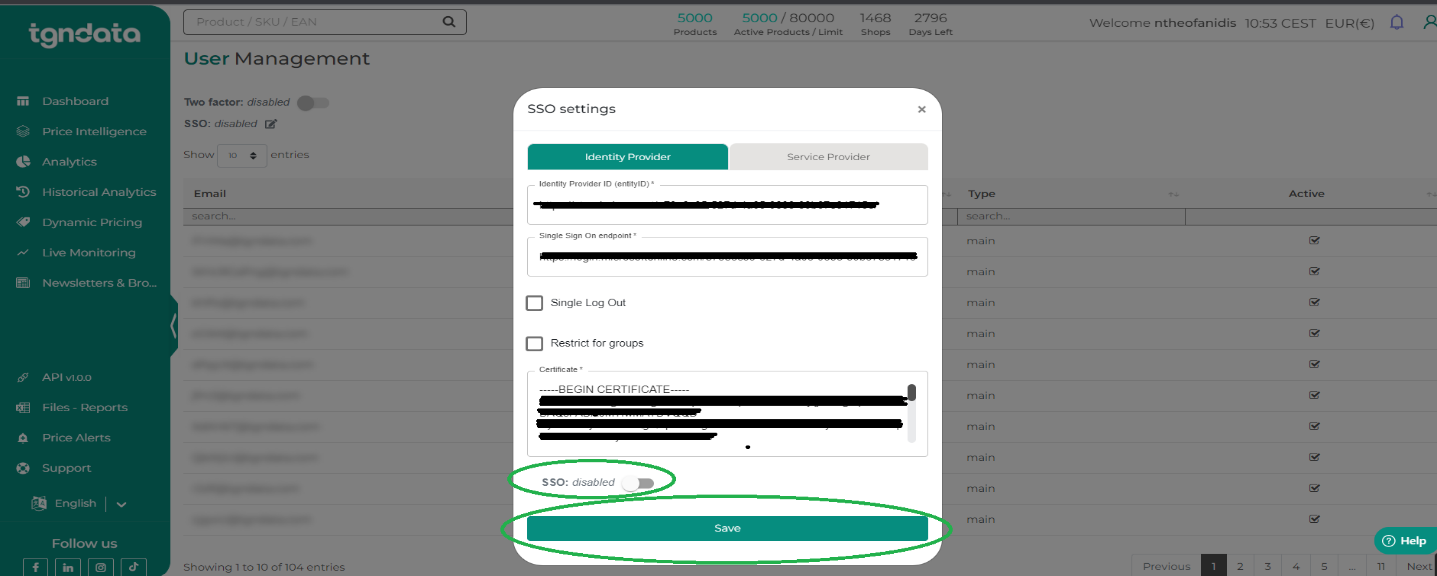
- In the SSO settings, switch SSO on and click Save at the bottom of the dialog.
Set up SSO with Microsoft Azure Active Directory
Step 1: Create the application in Azure
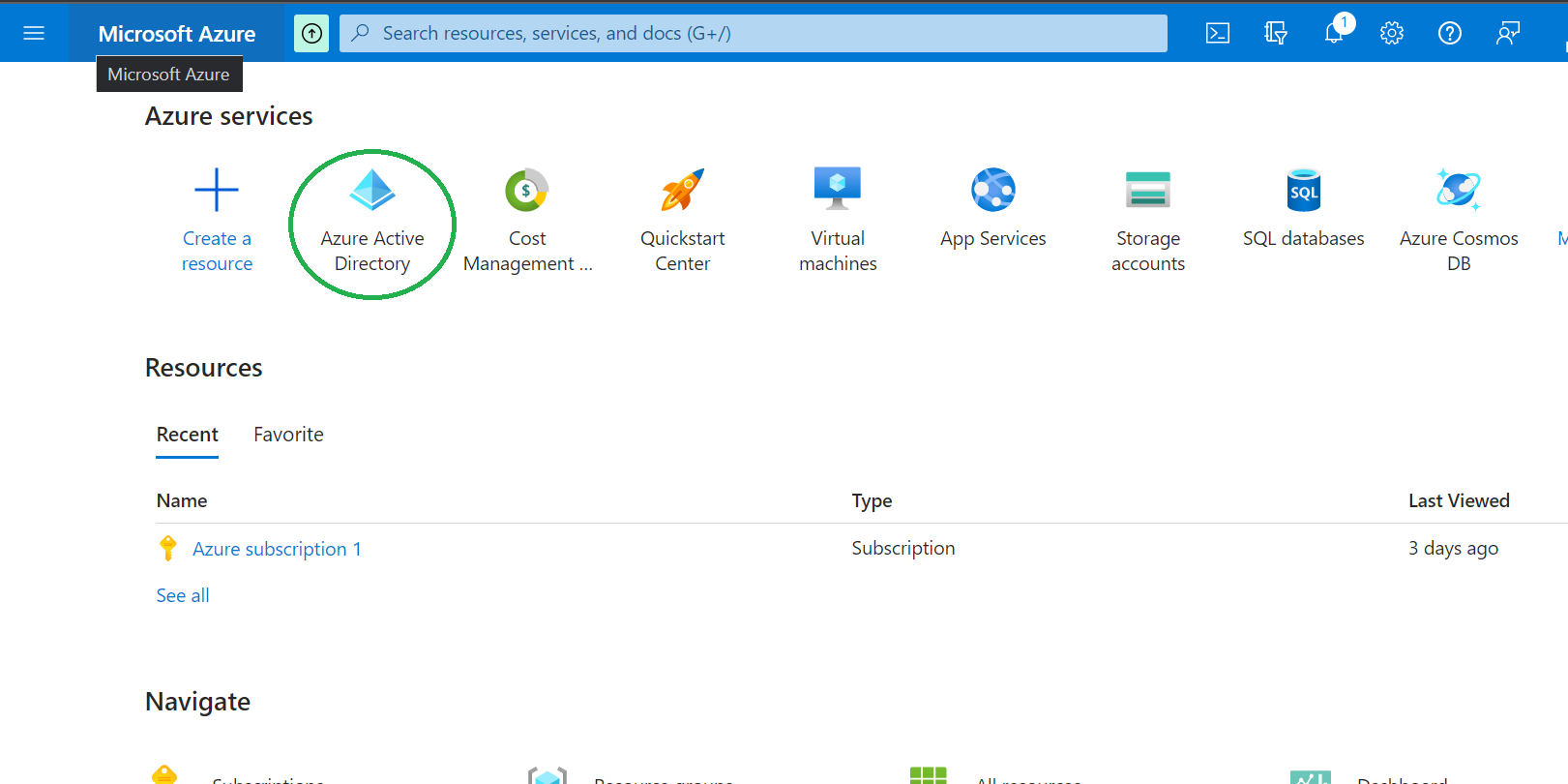
- Sign in to the Microsoft Azure portal and open the Azure Active Directory management page.
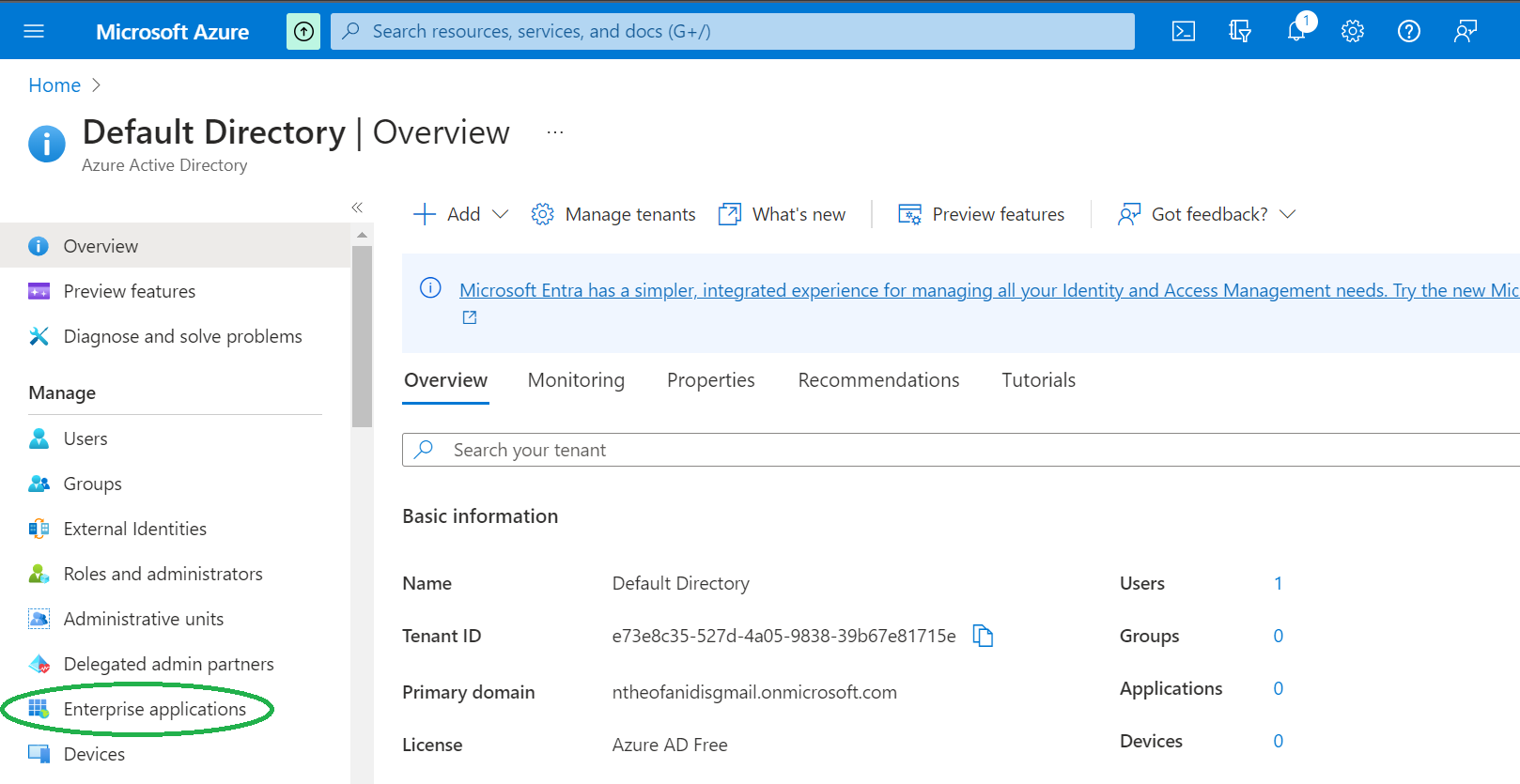
- Select Enterprise applications.
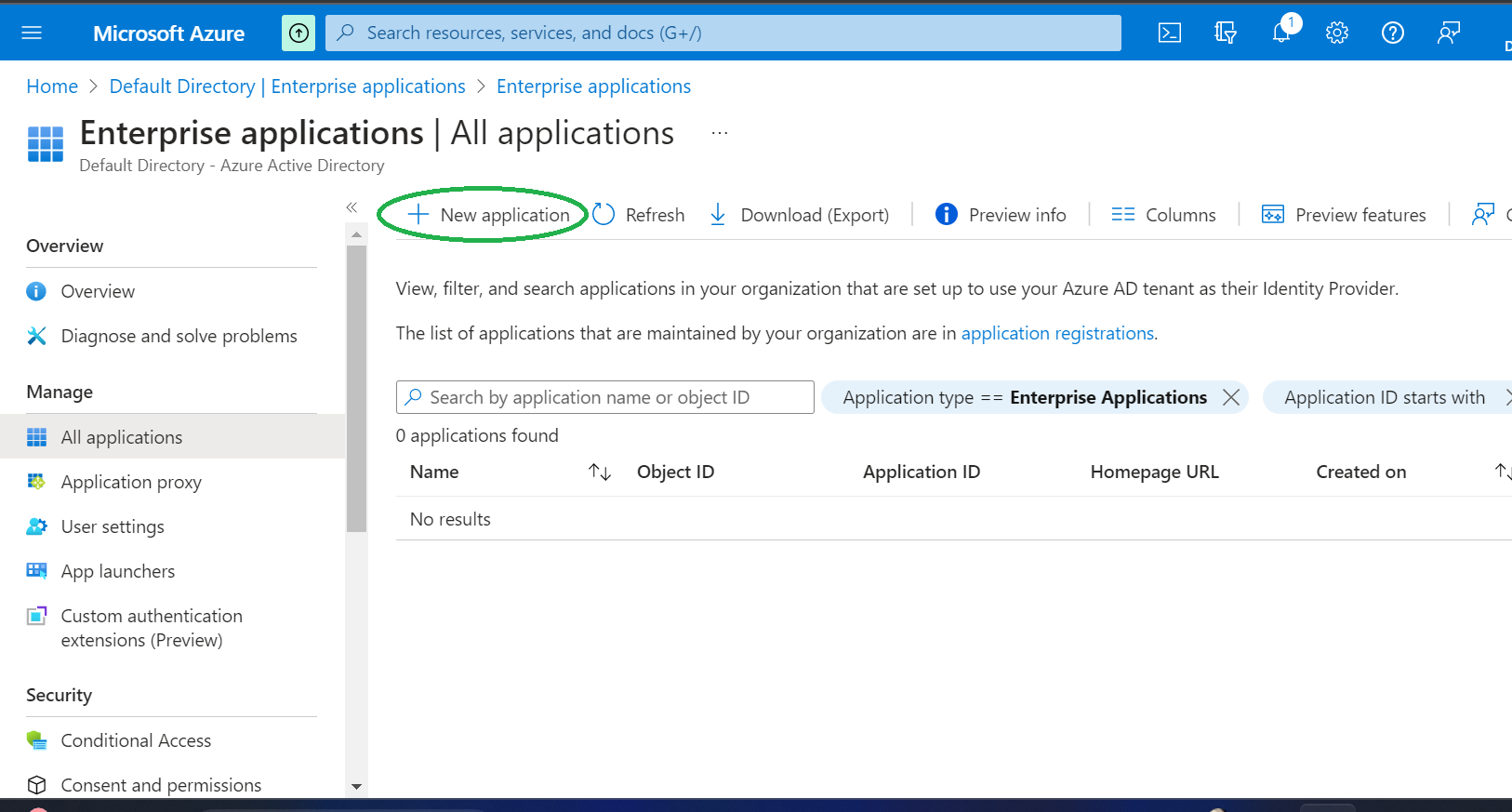
- Click New application.
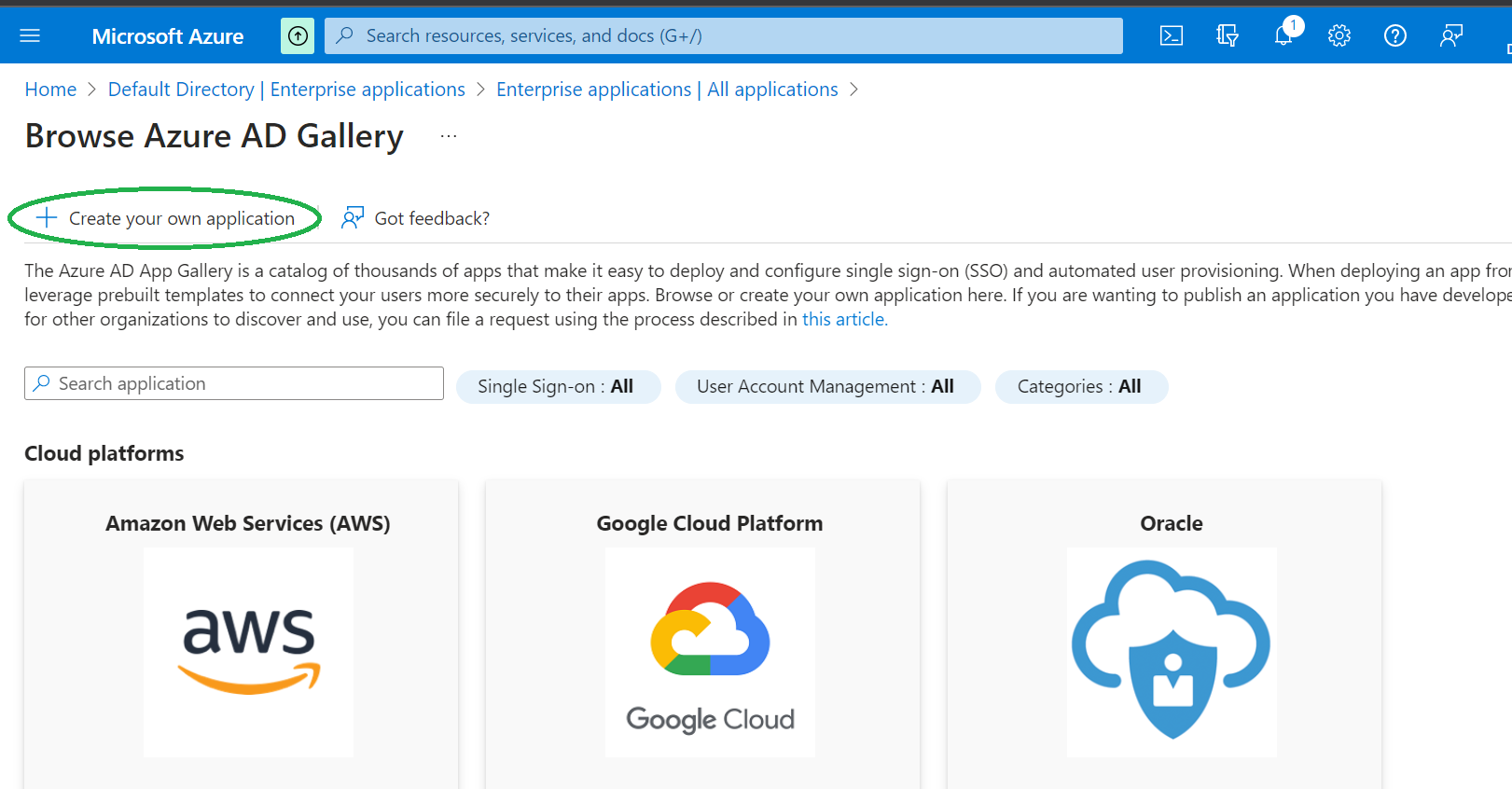
- Click Create your own application at the top left.
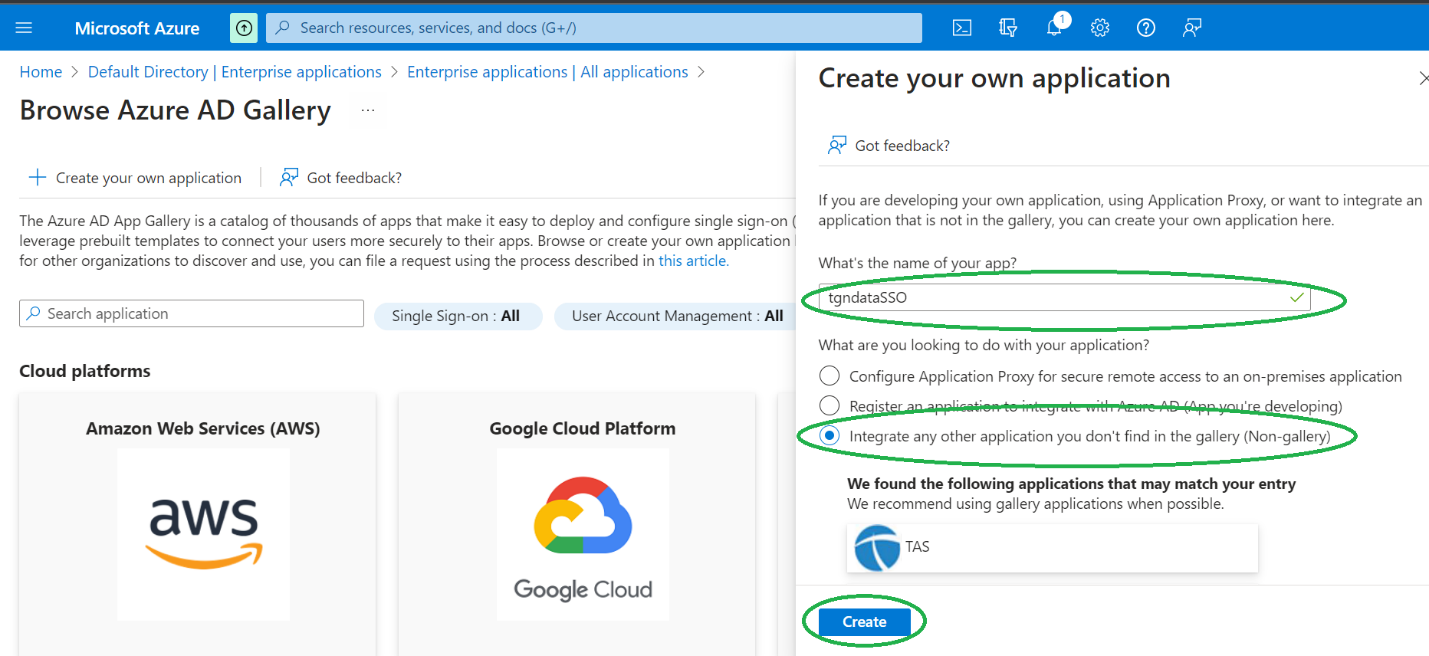
- Enter a name for the application. Make sure Integrate any other application you don't find in the gallery (Non-gallery) is selected, and click Create.
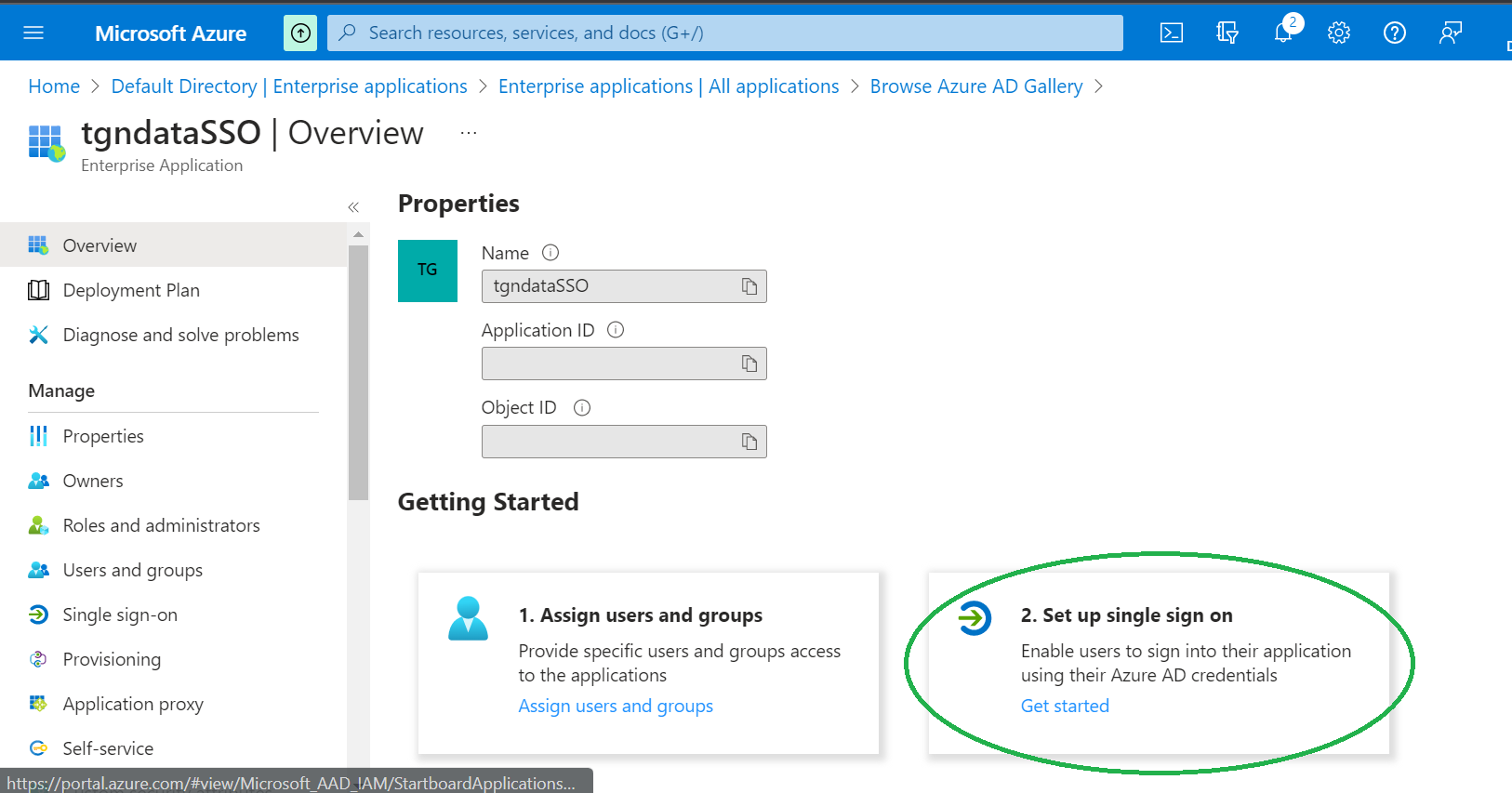
- On the Overview page of the new application, click 2. Set up single sign on in the Getting Started section.
- Select SAML as the single sign-on method.
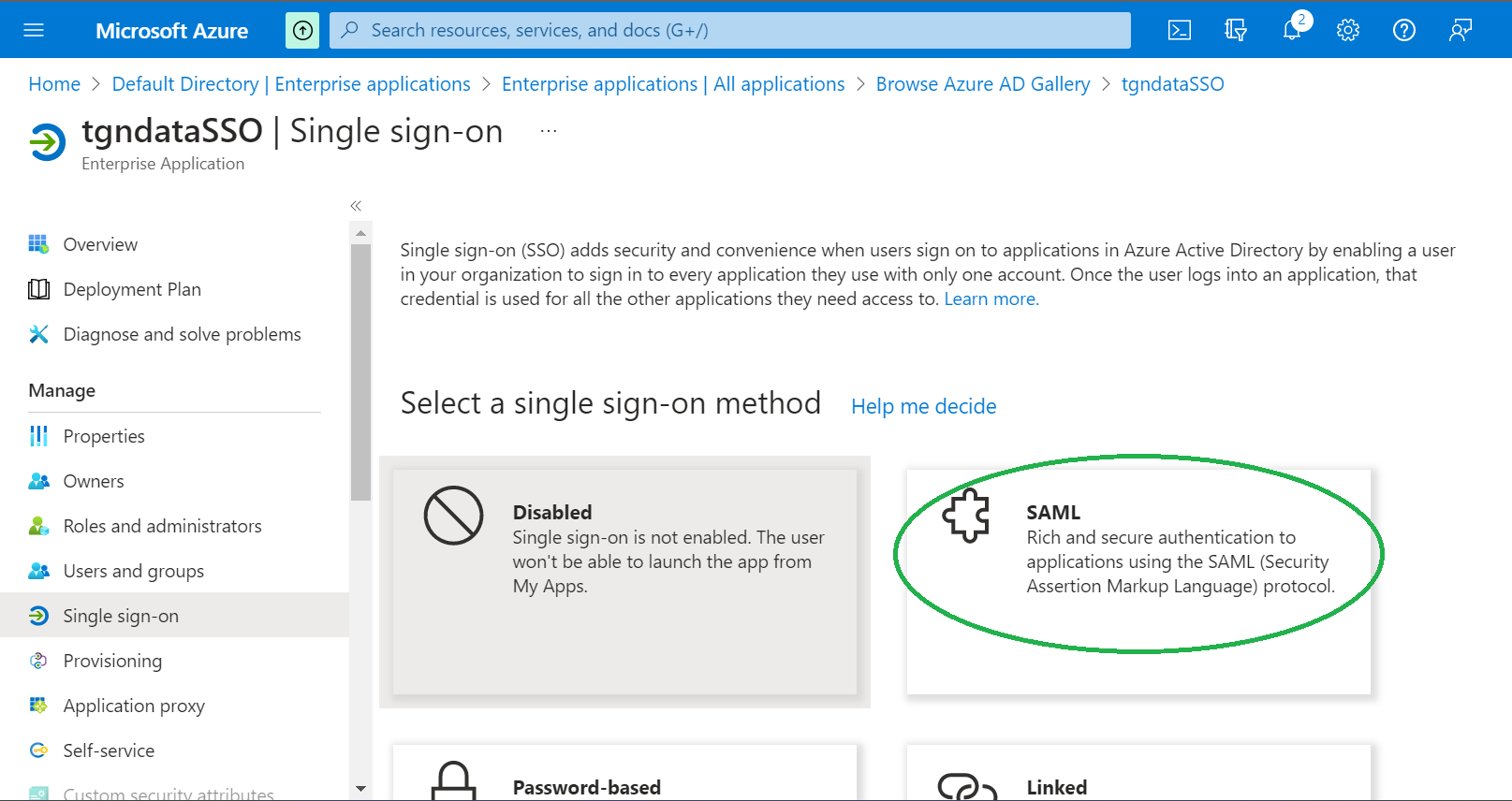
Step 2: Copy the tgndata values
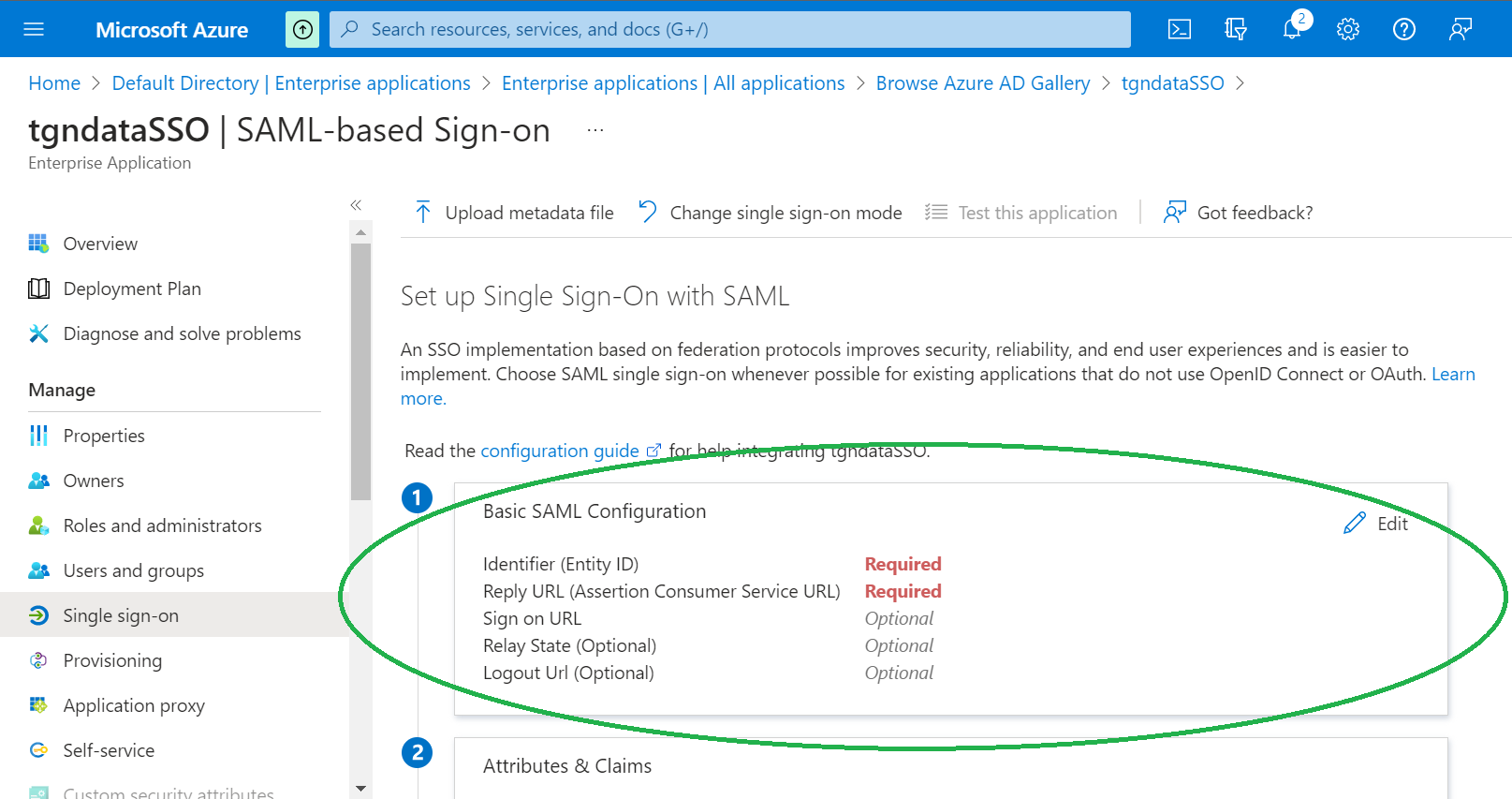
- On the SAML-based Sign-on page, click edit on the Basic SAML Configuration card to open the side panel.
- In another browser tab, sign in to tgndata and open the SSO settings (see the path above).
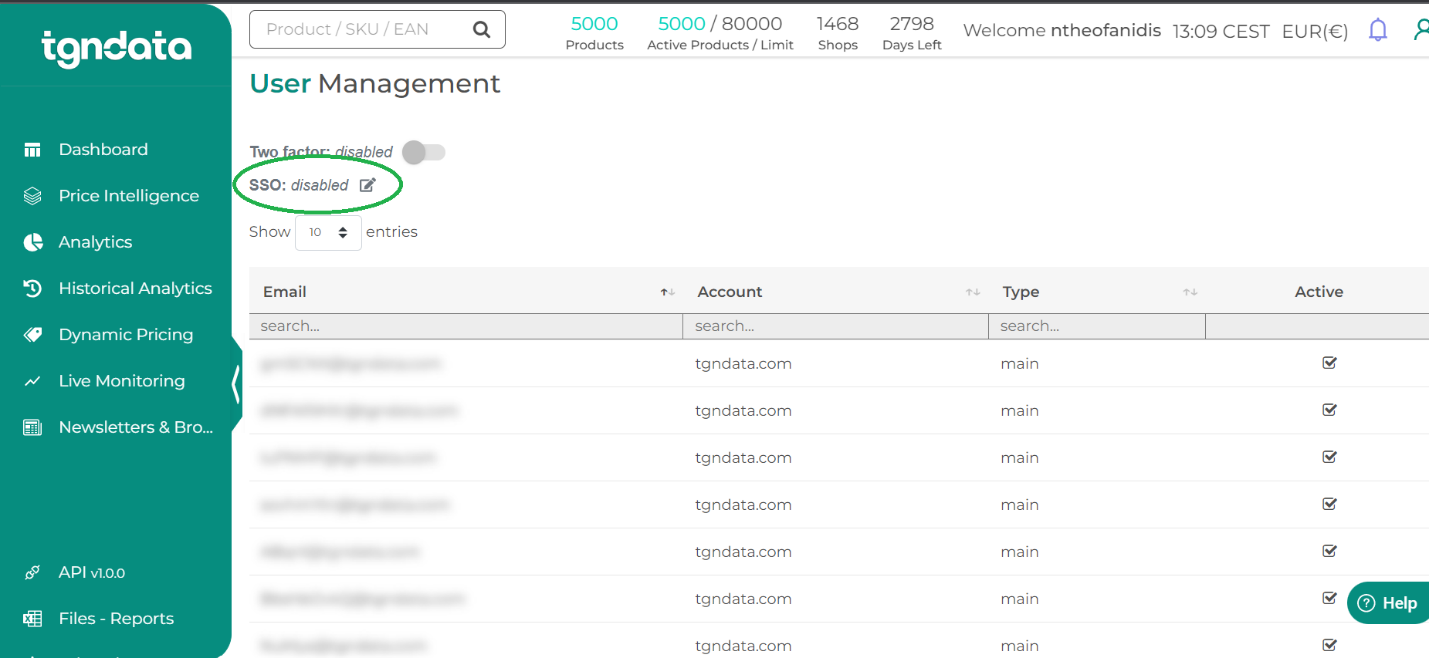
- Open the Service Provider tab. Copy the Service Provider ID, the Assertion Consumer Service and, optionally, the Single Log Out endpoint.
Step 3: Enter the values in Azure
- Go back to the Azure tab with Basic SAML Configuration open.
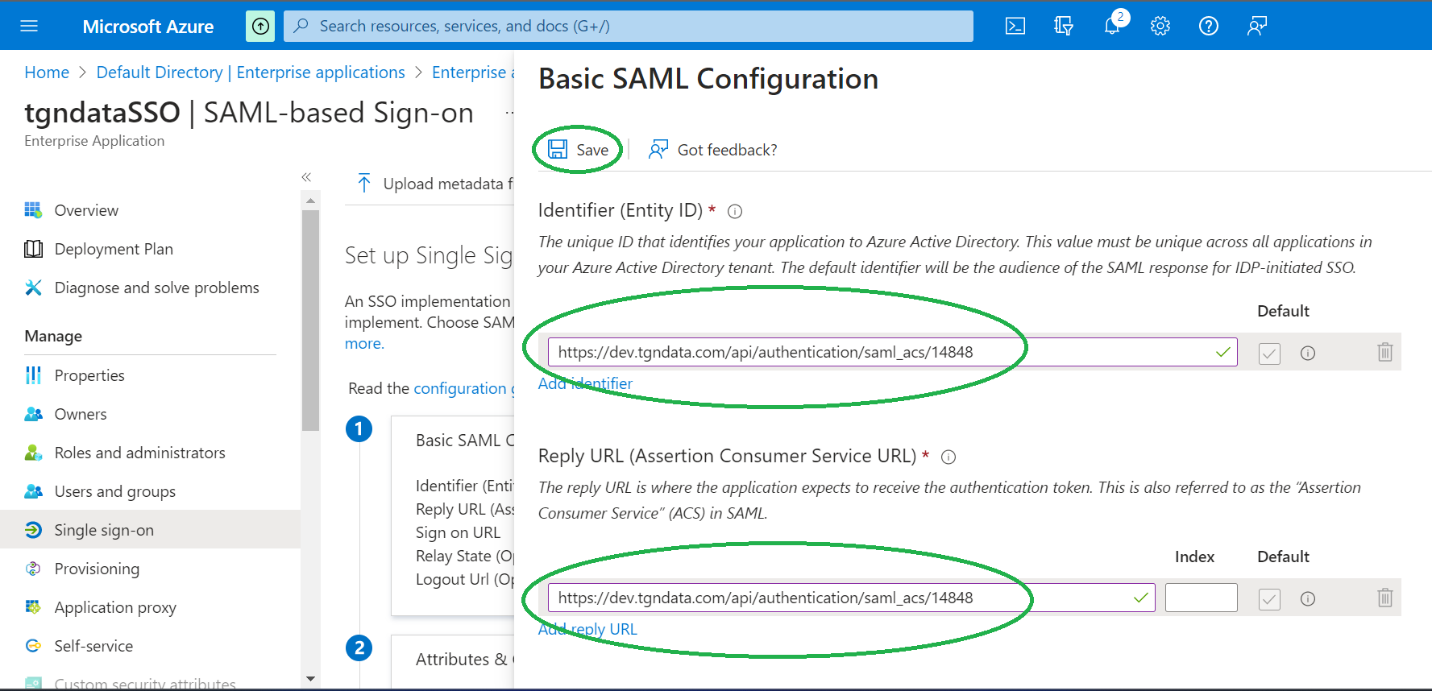
- Enter the Service Provider ID as Identifier and the Assertion Consumer Service as Reply URL. Optionally, enter the Single Log Out endpoint as Logout Url.
- Click Save at the top left of the side panel. This saves and closes the panel.
Step 4: Check the user identifier
- Scroll down and click edit on the Attributes & Claims card.
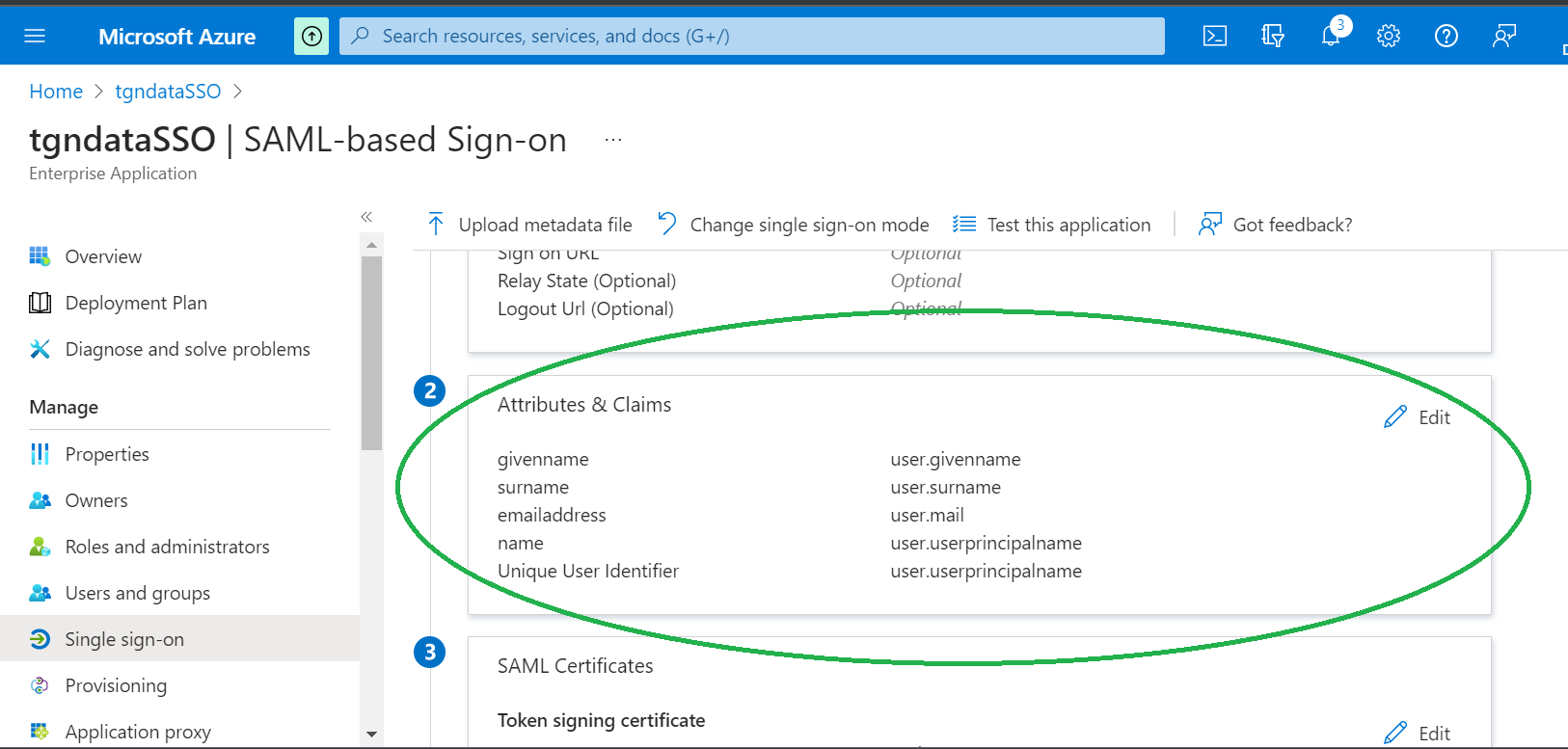
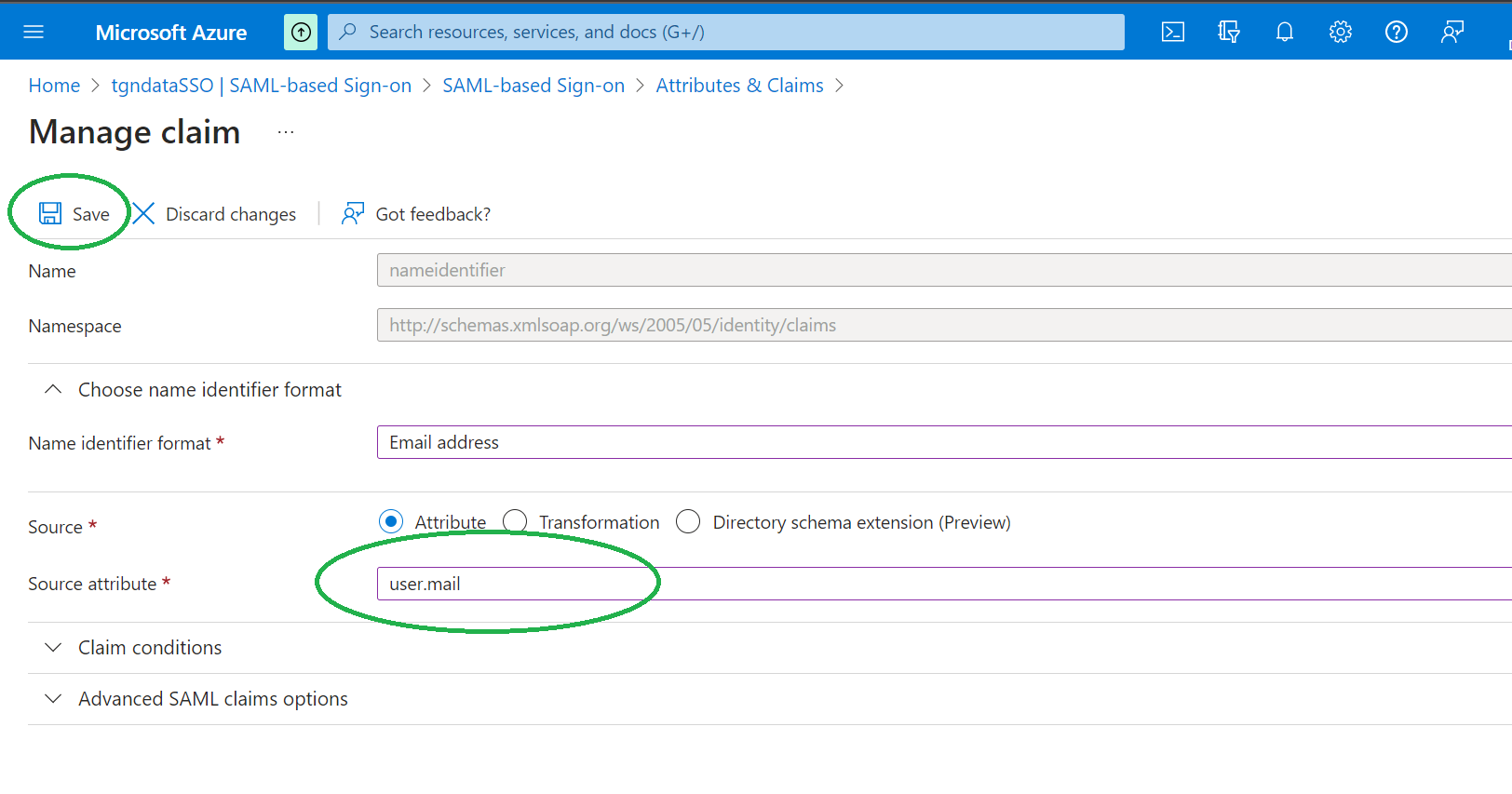
- Click the Unique User Identifier row in the Required claim section.
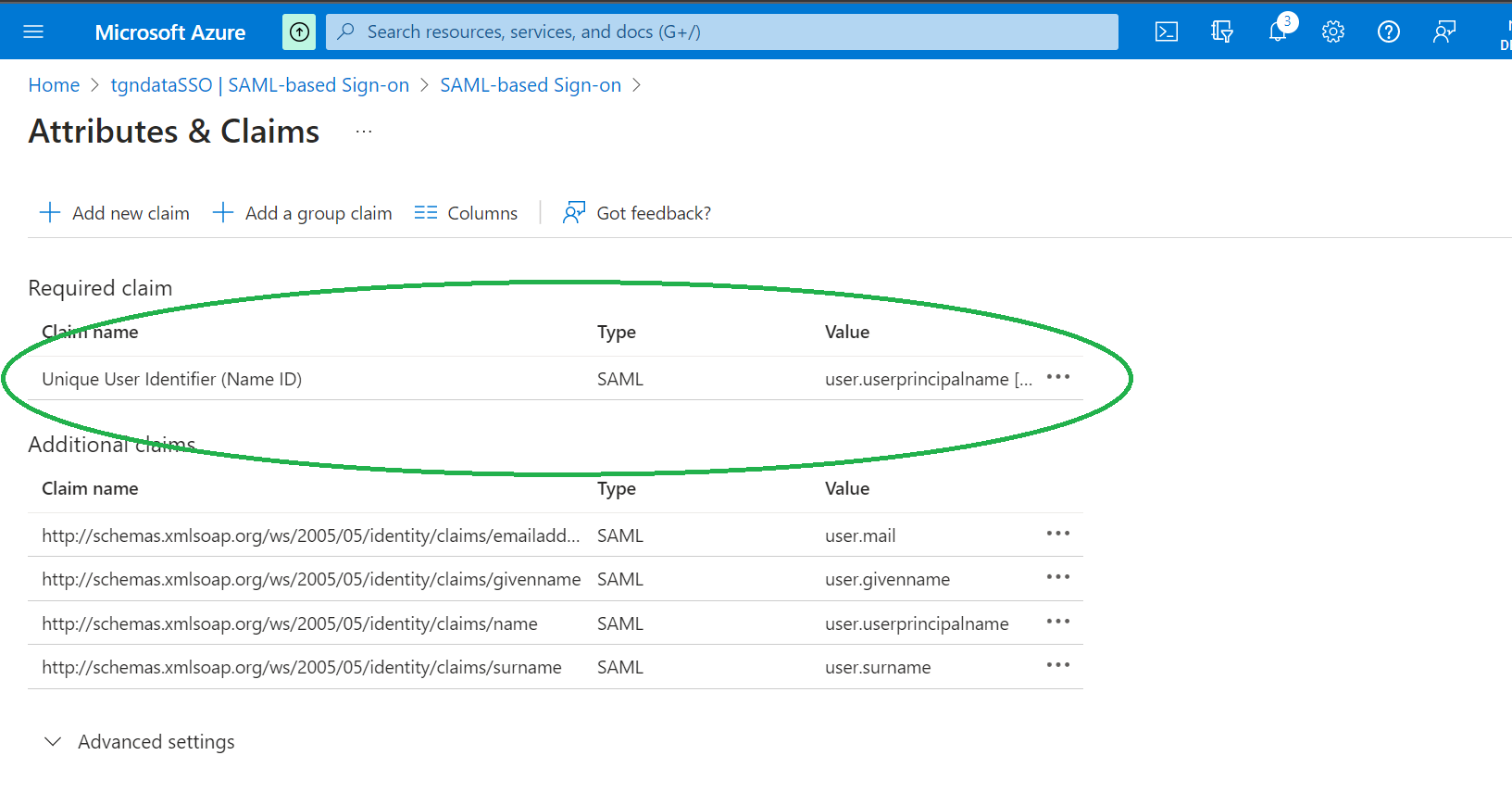
- On the Manage Claim page, make sure user.mail is selected as Source attribute, then click Save.
Step 5: Restrict access by claim (optional)
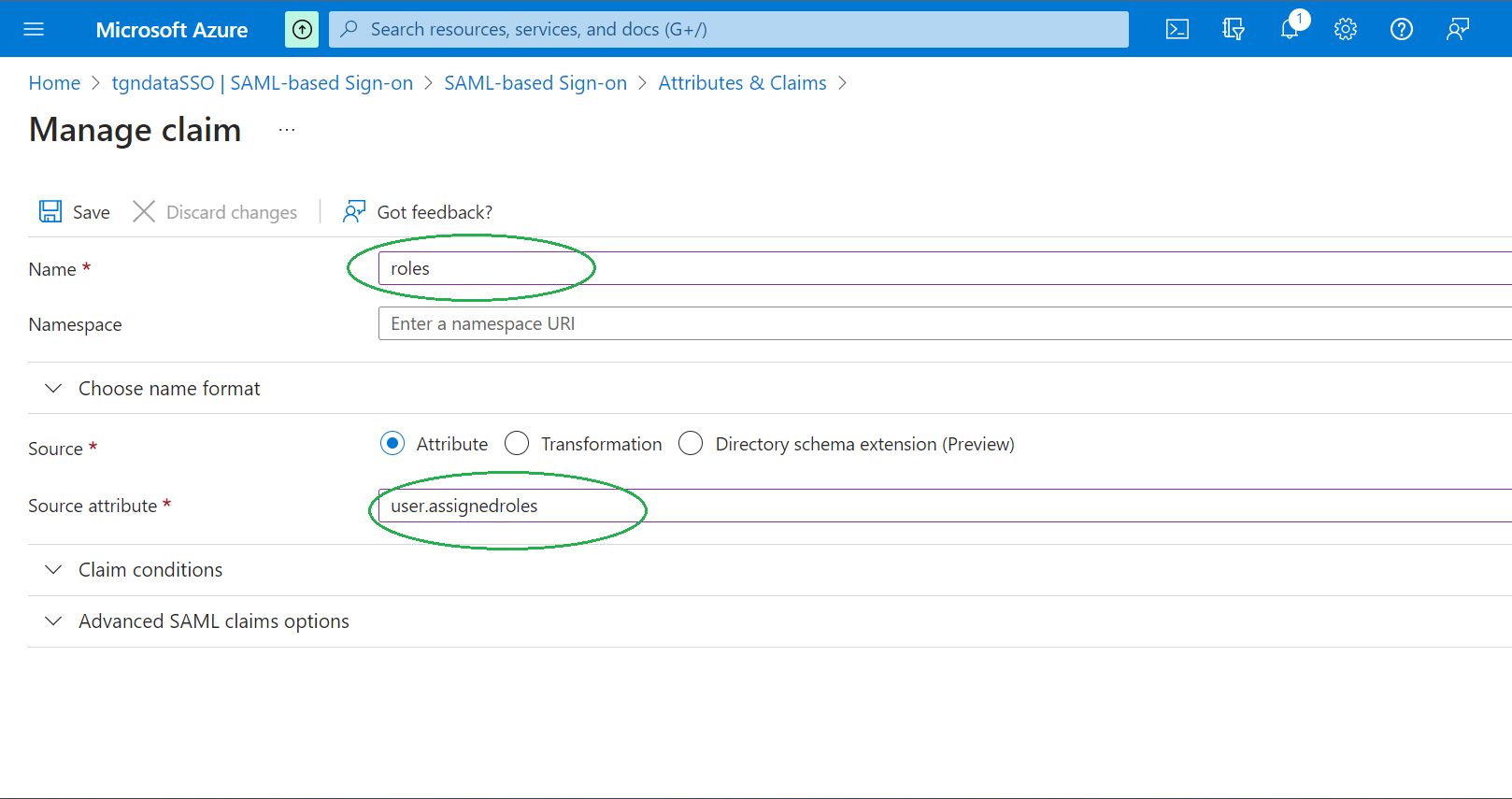
To limit access to tgndata based on the value of a claim, for example user.assignedroles, make sure that claim exists on the Attributes & Claims page. Copy its Name, for example roles.
Step 6: Copy the Azure values
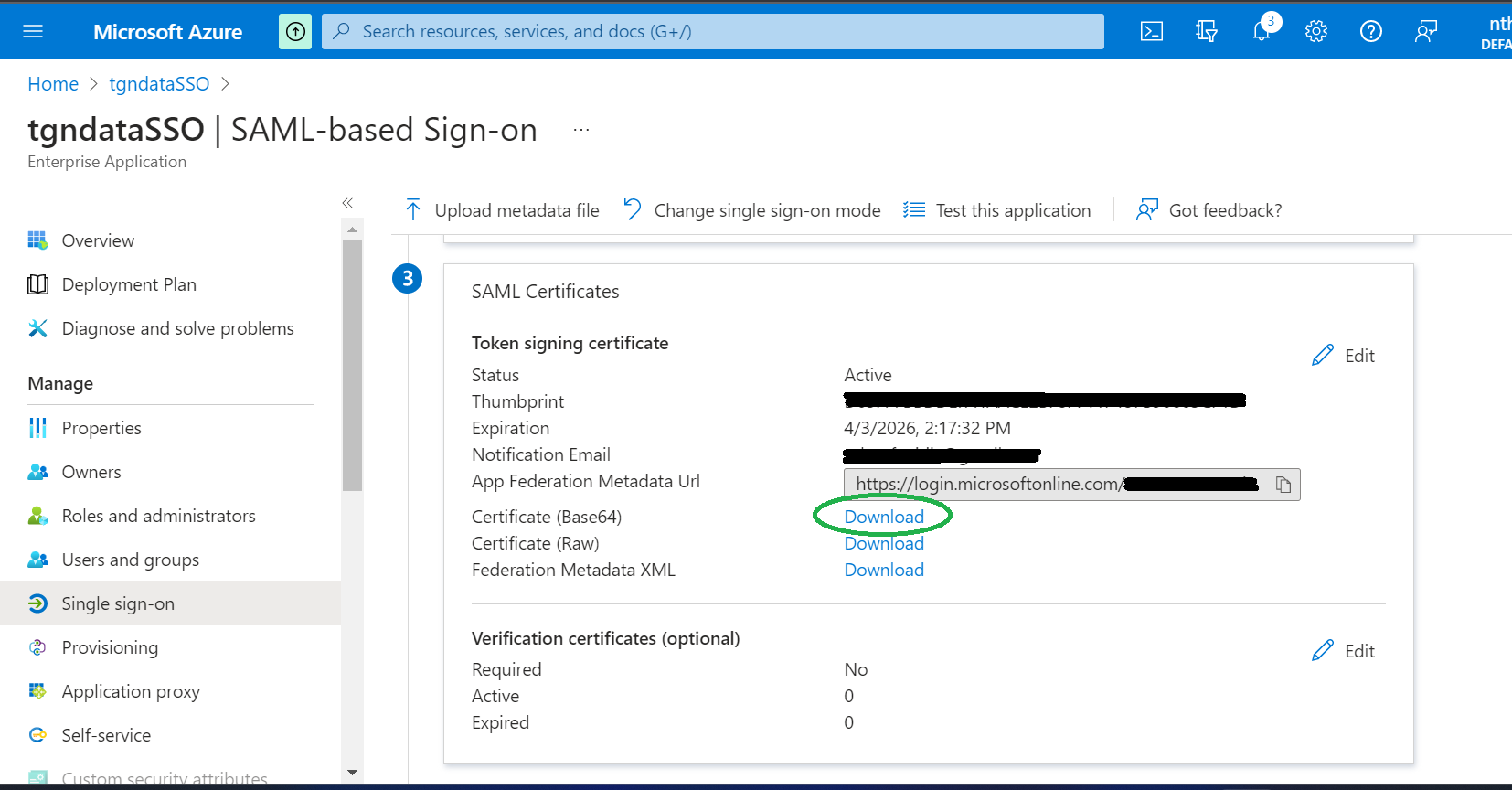
- On the SAML-based Sign-on page, scroll down to SAML Certificates and click Download next to Certificate (Base64). Keep the file for Step 7.
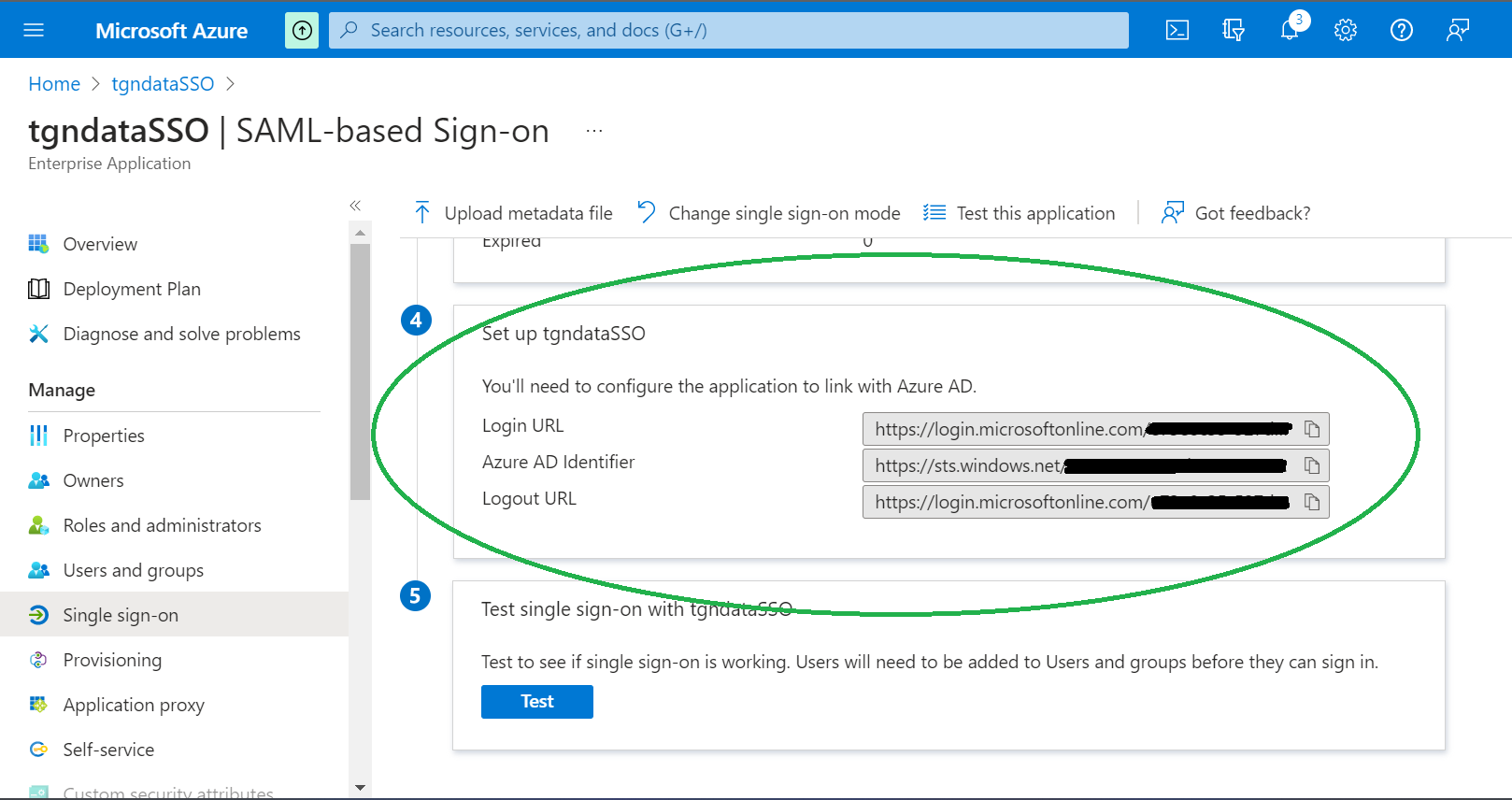
- Scroll down and copy the Login URL, the Azure AD identifier and, optionally, the Logout URL.
Step 7: Enter the Azure values in tgndata
- In tgndata, open the Identity Provider tab of the SSO settings.
- Paste the Azure AD identifier into Identity Provider ID and the Login URL into Single Sign On endpoint.
- Optional: select Single Log Out and paste the Logout URL into Single Log Out endpoint.
- Open the certificate file you downloaded in a text editor, such as Notepad. Copy its content and paste it into Certificate.
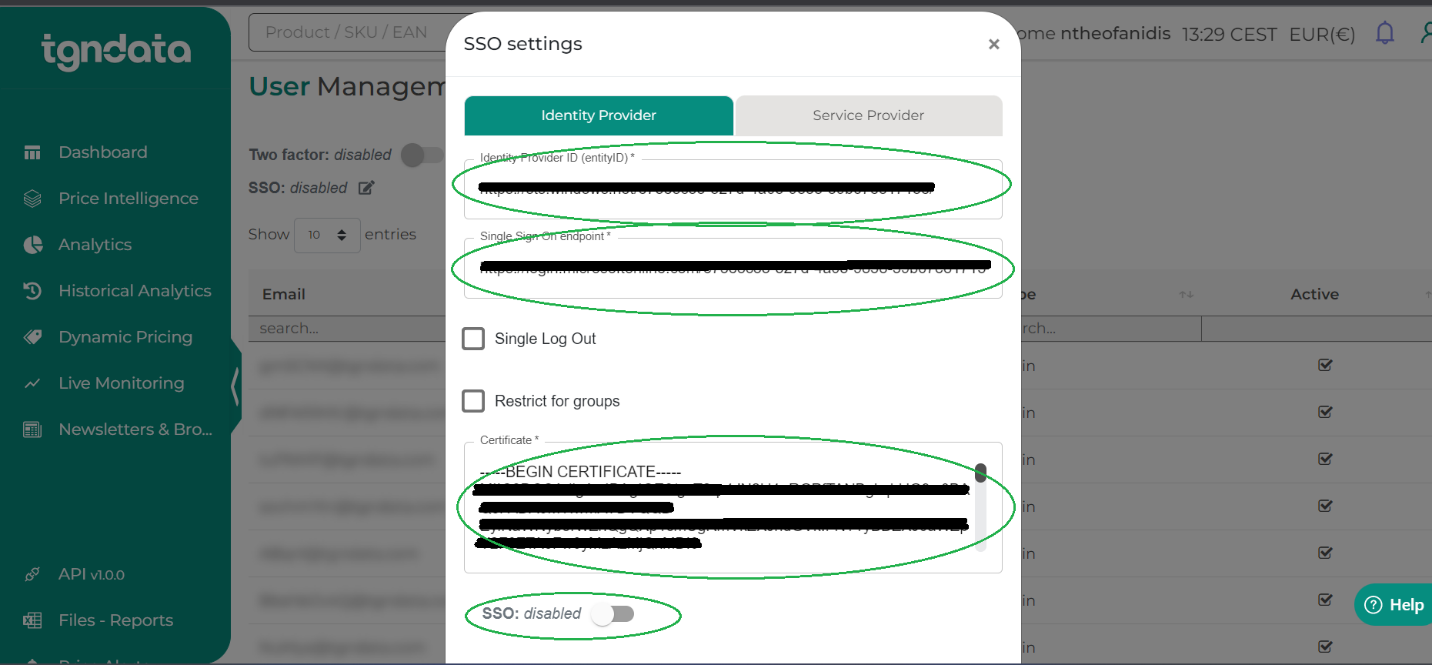
- Optional: to restrict access by claim, select Restrict for groups. Enter the claim name you copied from Azure, for example roles, in Attribute Name, and the values the claim is allowed to have in Allowed values.
- Switch SSO on and click Save at the bottom of the dialog.
Was this article helpful?
That’s Great!
Thank you for your feedback
Sorry! We couldn't be helpful
Thank you for your feedback
Feedback sent
We appreciate your effort and will try to fix the article