Invite new users to your tgndata account from Team Management.
Note: You must be an admin of your tgndata account to invite other users.
Click the profile icon in the top right corner, select Team Management Settings, and open the Team Management tab. The Invite User button is there.
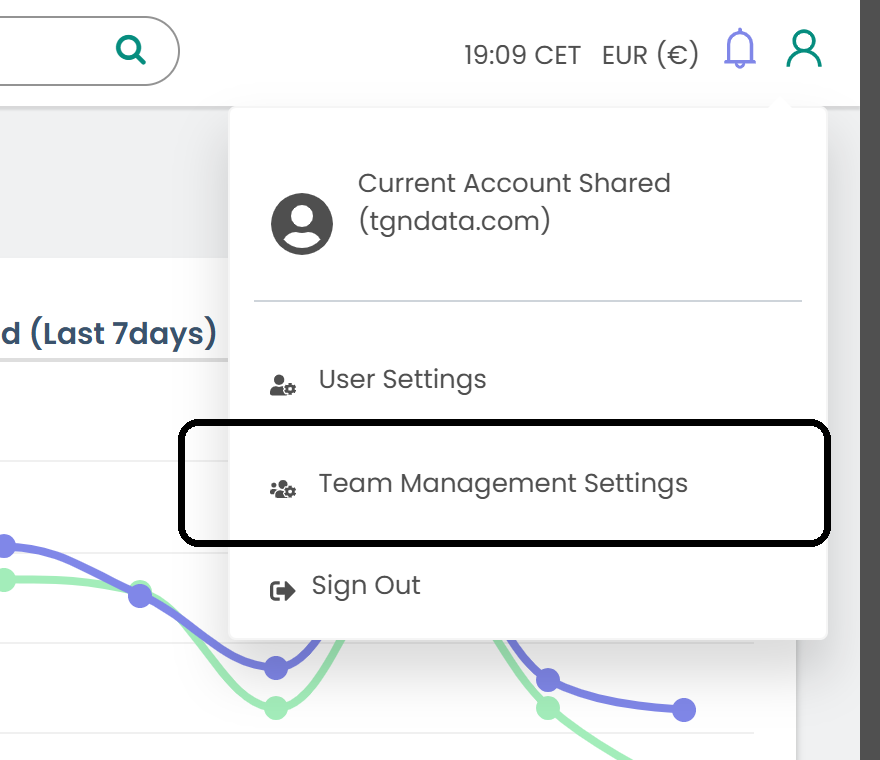
Invite a user
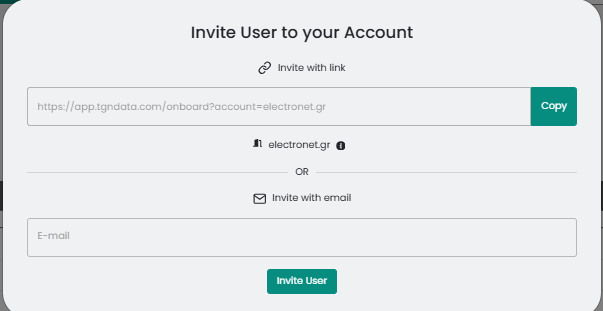
- Click Invite User.
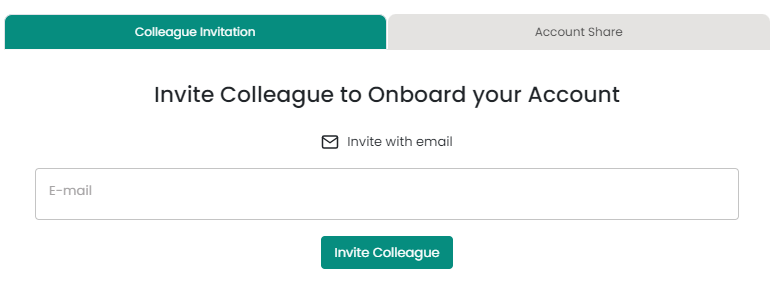
- In the Colleague Invitation tab, type the email address in the E-mail field and click Invite User. If your account has company email domains set up, you can share an invitation link instead.

New users appear on the Team Management page as soon as you invite them. They receive an email titled “Welcome onboard!â€. When they click Accept Invitation, they are signed in and asked to set their password. The link is valid for 24 hours.
Tip: If a teammate did not receive the invitation, ask them to check their spam folder. If it is not there, send the invitation again.
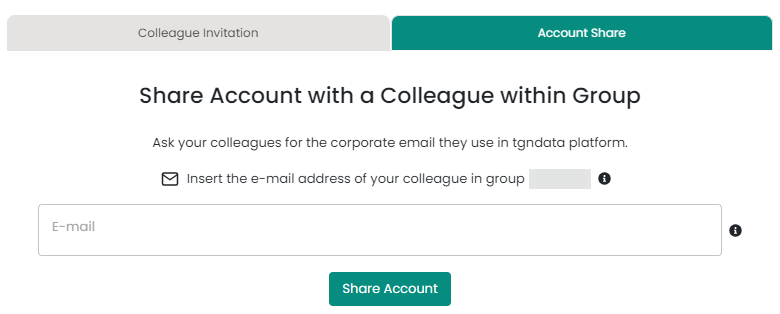
Invite someone from another account in your group
If your account belongs to a group of accounts, you can invite someone who already has a tgndata account in your group to join another account. Open the Account Share tab, type their email address and click Share Account. The invitation is valid for 15 days.
Was this article helpful?
That’s Great!
Thank you for your feedback
Sorry! We couldn't be helpful
Thank you for your feedback
Feedback sent
We appreciate your effort and will try to fix the article