Team Management lets you see all the users of your account, assign roles, invite users, and activate or deactivate them.
Click the profile icon in the top right corner, select Team Management Settings, then open the Team Management tab.
Read the table
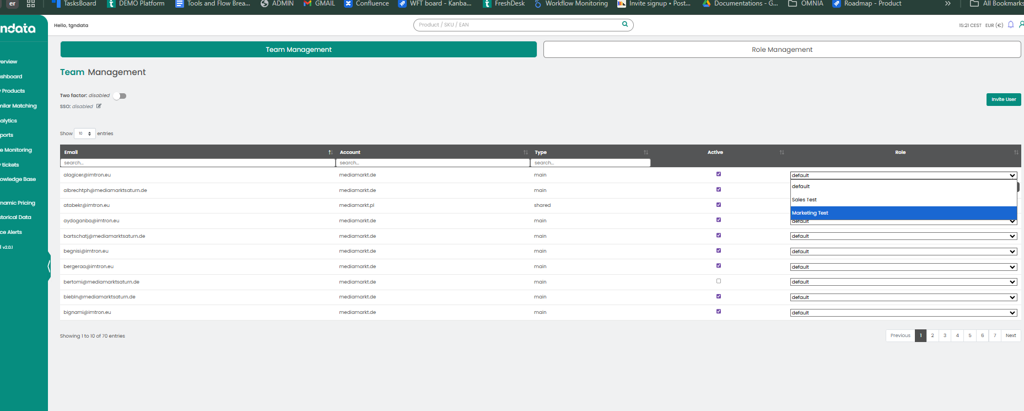
The table lists each user's email, the account they belong to, their type (main or shared), whether they are active, and their role.
Assign a role
In the Role column on the right, choose the default role or a custom role you created. To create roles, see Role management.
Note: Users with the default role can access every section of the platform. A custom role limits the sections a user can see.
Invite users
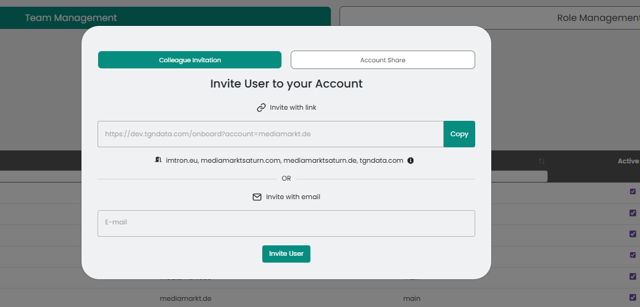
Copy and share the invitation link, or enter the email address and click Invite User. For more, see Invite a new user.
Activate or deactivate a user
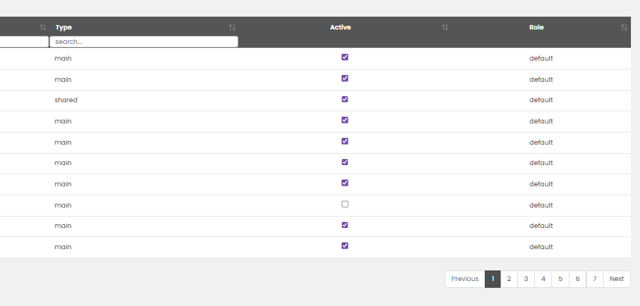
Select or clear the box next to the user's role.
Was this article helpful?
That’s Great!
Thank you for your feedback
Sorry! We couldn't be helpful
Thank you for your feedback
Feedback sent
We appreciate your effort and will try to fix the article