Brands Analysis shows, for each brand, how many of your products are priced below, equal to or above your competitors. Use it to see which brands you are cheaper or more expensive on.
Open it from Analytics in the left sidebar, then click the Brands Analysis tab.
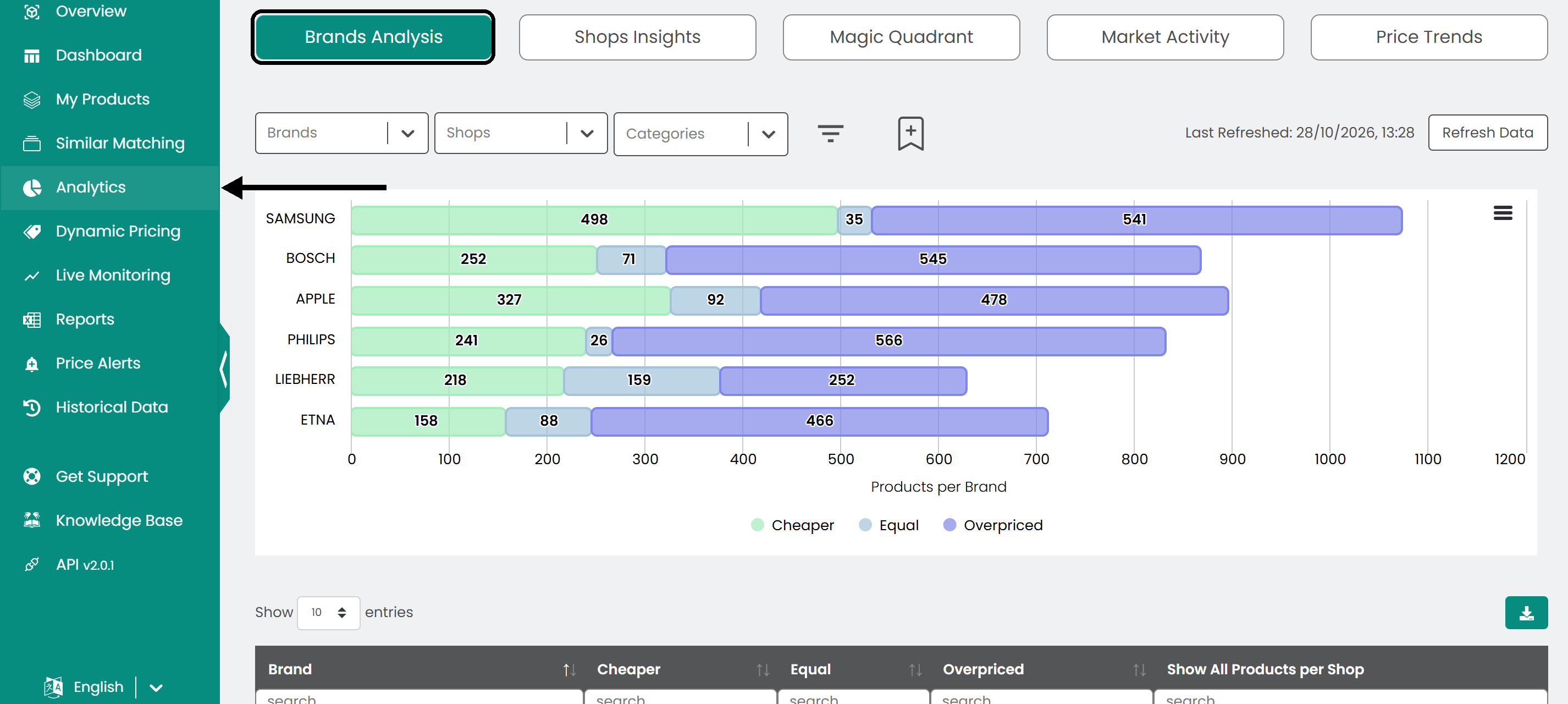
Read the chart and table
- Graph: A bar for each brand, split into Cheaper (green), Equal (light blue) and Overpriced (purple) products.
- Table: Every brand with the same three counts. The ALL row shows the total across all brands.
Note: Cheaper means your price is below your competitors' price for the same product, Equal means it is the same, and Overpriced means it is above.
What the bars tell you
- A bar that is mostly purple means most of that brand's products are priced above your competitors.
- A bar that is mostly green means most of that brand's products are priced below your competitors.
- Compare the ALL row with a single brand to see which brands differ from your overall position.
Filter the data
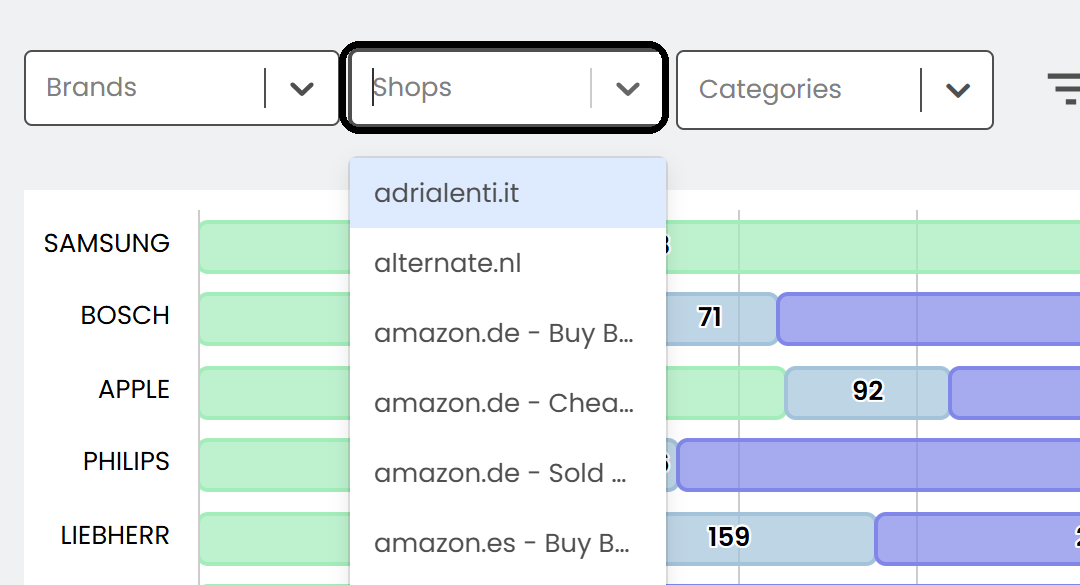
Narrow the data with the lists above the chart:
- Brands – show only the brands you pick.
- Shops – compare against only the shops you pick.
- Categories – limit the data to selected categories.
- More filters – filter by tags, SKU or availability.
Note: The page shows when the data was last refreshed. Click Refresh Data to update it.
Explore the details
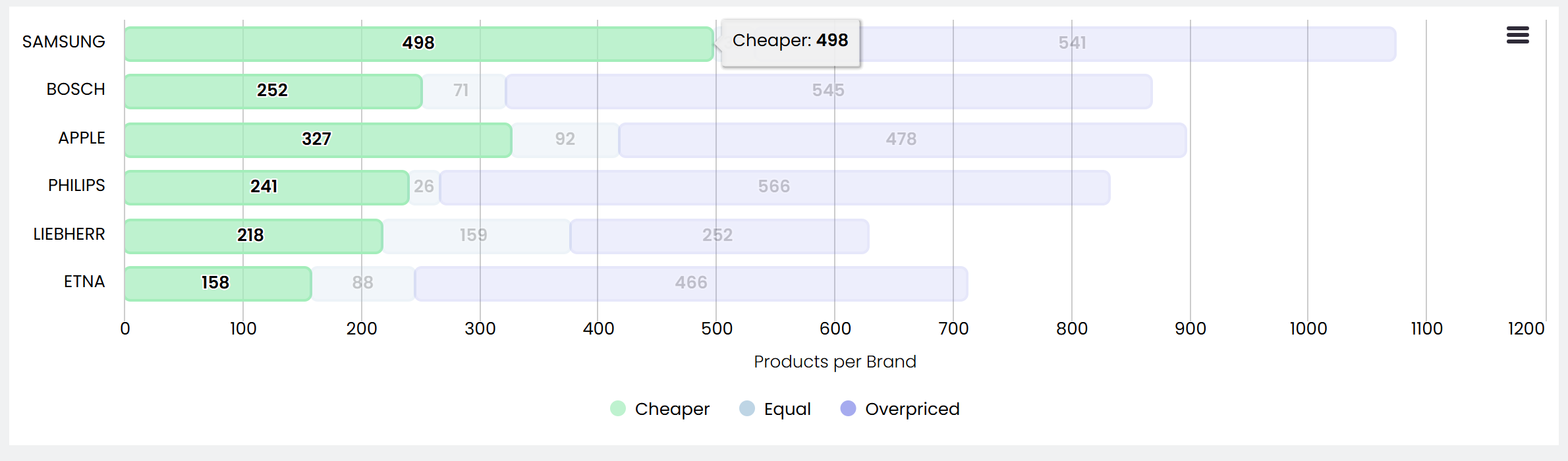
Hover over a bar segment to see the number of products per shop in that group.
In the table, type in the box under a column header to filter the rows. Click a column header to sort, for example to find the brands with the most overpriced products. The table shows 10 brands per page; use the Show entries list to change this.

Click Show in the last column to list all products of a brand.
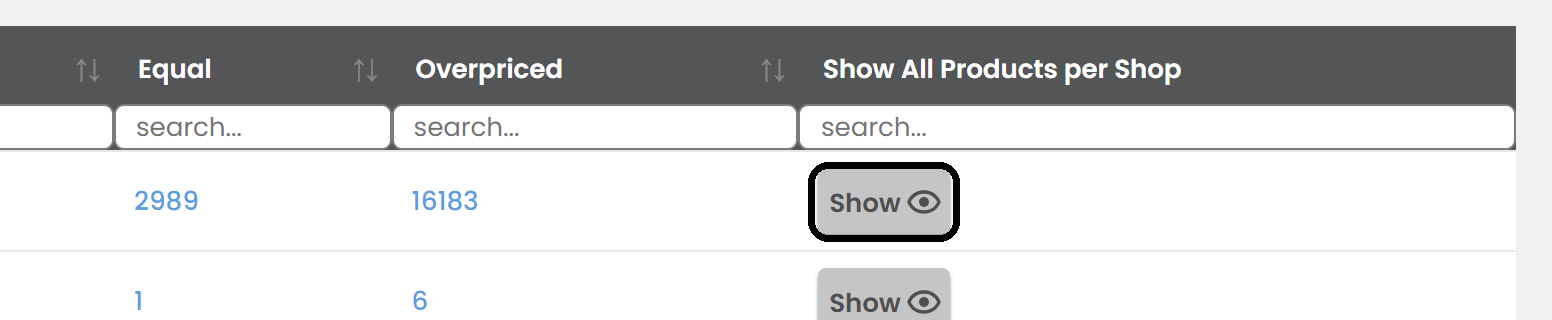
Tip: Click a number in the table to see the shops, categories and products behind it.
Export the data
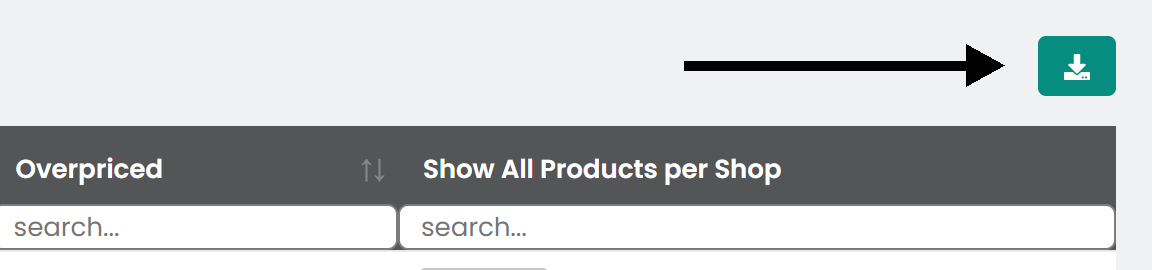
To use the data elsewhere, click the download button above the table to save it as a CSV file.
Was this article helpful?
That’s Great!
Thank you for your feedback
Sorry! We couldn't be helpful
Thank you for your feedback
Feedback sent
We appreciate your effort and will try to fix the article